Product ID Format: Make Your Feed Match the Facebook Pixel (content_id)
Dynamic ads and retargeting only work when Facebook can connect two things: the id on each item in your catalog, and the content_ids your Meta pixel fires when a shopper views a product, adds to cart, or buys. If those two identifiers don't match exactly, Meta has nothing to join on — so your Advantage+ catalog ads show no products, retargeting audiences stay empty, and the whole setup fails silently with no error anywhere. This is a common reason a technically "valid" feed still doesn't sell anything. This app writes the id into the
Don't have Awesome Feeds yet? Install it from the Shopify App Store →
1 Understand the matching rule
The rule is short: the id in your feed must equal the content_ids value your pixel sends for the same product. Meta joins events to catalog items by exact string match — the id is case-sensitive (abc123 and ABC123 are two different items) and capped at 100 characters. If your pixel fires content_ids: ["shopify_284197941_670889949"] but your feed item's id is just 670889949, Meta sees two unrelated items and the ad has nothing to show. There's a second identifier that matters: content_type: product or product_group, Meta matches your event against the item id or the item_group_id — so it's worth knowing which one your pixel uses.
2 Open the Product ID format setting
The Product ID format lives in the Advanced editor. From your dashboard, open the feed's Actions menu and choose Edit (advanced) (the Basic editor doesn't expose this setting). If you're currently in the Basic editor, use Switch to advanced — both editors edit the same feed, so nothing is lost.
![Open the Product ID format setting — s-button[commandFor="feed-menu-1"] highlighted](/docs-assets/img/product-ids-and-facebook-pixel-matching/00-dashboard-open.png?2b7e1035)
3 Find the "Other settings" section
Scroll to the Other settings section at the bottom of the Advanced editor. The last control is Product ID format — a list of five radio options. Whatever you pick here becomes the id on every item the feed exports, so change it deliberately: switching formats renames every item in your catalog, and Meta treats renamed items as brand new ones (any existing ad performance and reviews attached to the old ids reset).
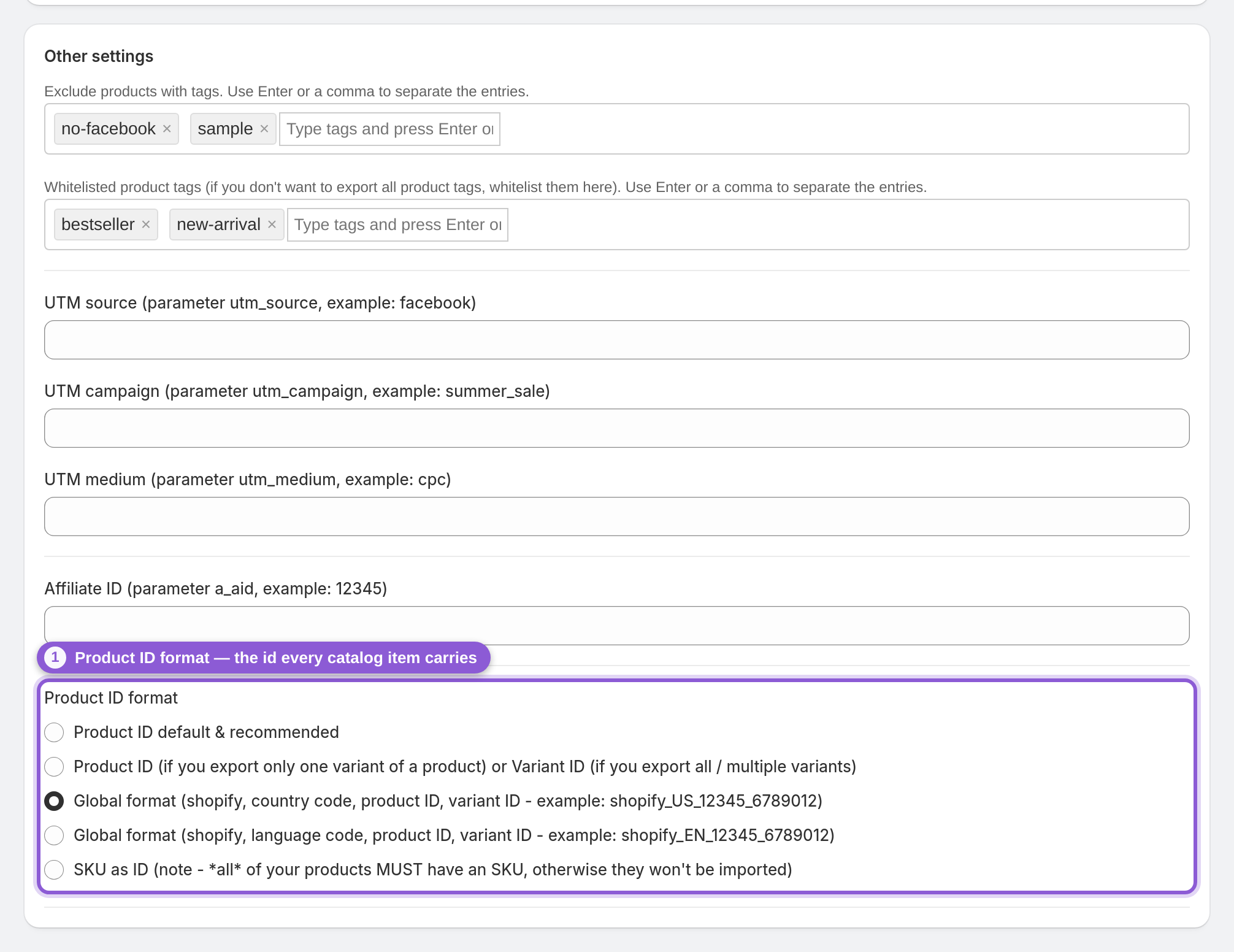
4 Keep the default: Product ID (recommended)
The default is "Product ID default & recommended". It writes each variant's numeric Shopify ID into the item id (for example 6789012) and the product's numeric ID into item_group_id. This is the right choice for most stores — especially if this app is the only thing building your catalog and you set up your pixel to send the same variant IDs, or you're not running dynamic ads that depend on a specific legacy id scheme. If dynamic ads work, don't change it. The second option, "Product ID (if you export only one variant of a product) or Variant ID (if you export all / multiple variants)", is the app's older default, kept for feeds created before the default changed. It emits the product ID when you export a single variant per product, and the variant ID when you export all/multiple variants. Only pick this if you built your catalog under the old behavior and need to keep those exact ids stable.
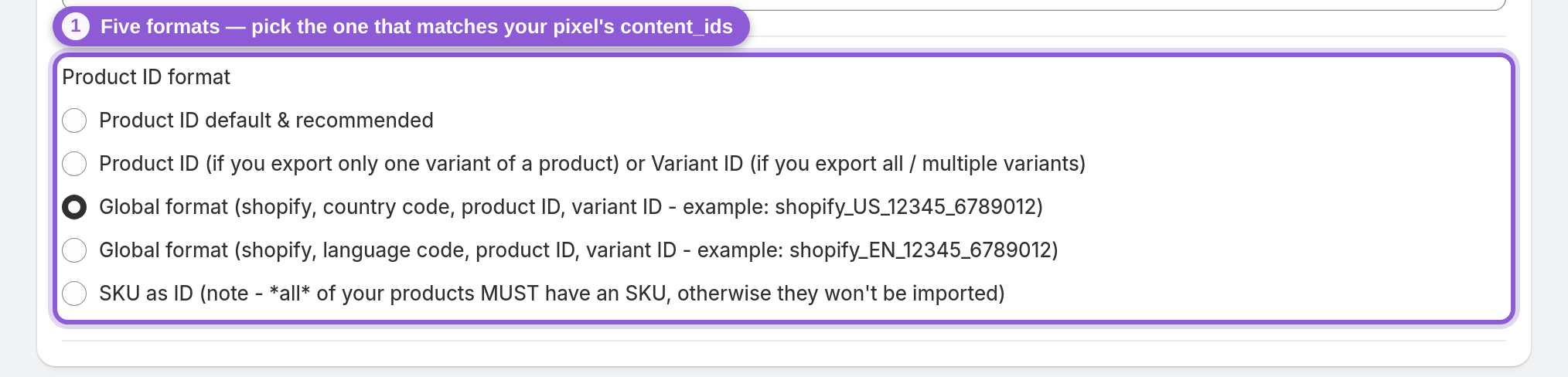
5 Match Shopify's Facebook channel: the Global format
If you also run Shopify's built-in Facebook & Instagram sales channel, its pixel sends content_ids in a shopify_… shape rather than a bare numeric id. To line up with it, pick the Global format option:
• "Global format (shopify, country code, product ID, variant ID - example: shopify_US_12345_6789012)" — emits shopify_. The country code comes from the feed's Market country (defaults to US). Use this when you sell across Shopify Markets / multiple countries and your pixel is country-aware.
• "Global format (shopify, language code, product ID, variant ID - example: shopify_EN_12345_6789012)" — the same shape but keyed by language code instead of country (defaults to EN), for multi-language stores that build one feed per translation.
Historically Shopify's Facebook channel used a shopify_ id (for example shopify_284197941_670889949); the country/language-coded variants above extend that convention for Markets. If your pixel already fires a shopify_… content_id, pick the Global option whose shape matches it exactly. The app can't produce the older shopify_ shape without a country or language code.
6 Use your SKU as the ID (with one big caveat)
The last option is "SKU as ID (note - all of your products MUST have an SKU, otherwise they won't be imported)". It uses each variant's SKU as the item id. This is handy when your catalog, your ERP, and your other sales channels all key off SKUs and you want one identifier everywhere — but heed the warning: any variant without a SKU goes into the feed with an empty id, so your catalog won't import it. Only choose SKU as ID if you're certain every single variant has a unique, non-empty SKU.
7 Save, then verify the two identifiers line up
After picking a format, Save. The feed is rebuilt with the new ids automatically (or click Update now to queue a rebuild). Commerce Manager shows the new ids only after Meta next fetches your feed URL, so wait for that fetch before comparing. To confirm the match, open a product page in your store with the Meta Pixel Helper browser extension and compare the content_ids it reports against the id (or item_group_id) of the same product in Facebook Commerce Manager. If they're identical strings, Meta can match your pixel events to real catalog items. If they differ, come back and switch the Product ID format to the one that produces the id your pixel is already sending. Running country or language feeds on top of your main feed? They're matched by the same id, so keep every feed on one format, see Facebook country and language feeds.
Frequently asked questions
Why do my Facebook dynamic ads show no products even though my feed is valid?
Almost always because the id in your catalog doesn't match the content_ids your pixel sends. A feed can pass every validation check and still fail here — Meta joins pixel events to catalog items by exact id match, so if the two identifiers differ, there's nothing to show. Fix it by setting the Product ID format so the feed's id equals what your pixel fires.
What does "facebook pixel content_id not matching catalog" actually mean?
Your pixel fires a content_ids value (like shopify_284197941_670889949) on product views and purchases. Your catalog item has an id. Meta matches the two by exact string. "Not matching" means the pixel's content_id and the catalog id are different strings, so retargeting audiences and Advantage+ catalog ads can't tie a shopper's activity to a specific product.
What ID does the app put in my Facebook feed?
Whatever the Product ID format setting says. The default writes each variant's numeric Shopify ID into shopify_US_…, shopify_EN_…, or your SKU. The product's numeric ID always goes into
Which Product ID format should I choose?
Keep the default Product ID if dynamic ads already work or this app builds your only catalog. Choose a Global format (shopify_US_… or shopify_EN_…) if you also run Shopify's Facebook & Instagram channel and its pixel sends shopify_… content_ids. Choose SKU as ID only if every variant has a SKU and you key everything off SKUs.
What format does Shopify's Facebook channel use for product IDs?
Shopify's Facebook & Instagram channel has historically used shopify_ (for example shopify_284197941_670889949) as the pixel's content_id. For stores selling across Markets, the app's Global format options extend this to include a country or language code (shopify_US_12345_6789012). Confirm your store's exact shape with the Meta Pixel Helper before choosing.
Will changing the Product ID format break my existing catalog?
It renames every item. Meta treats a renamed id as a brand-new item, so historical ad performance, reviews, and any manual edits tied to the old ids reset, and existing ads may stop serving until Meta has fetched the updated feed. Only change the format when your ids genuinely don't match the pixel — then change it once and let everything re-sync.
Why do my product variants all match the same ID in the pixel?
Some pixel setups send the parent product ID for every variant instead of the specific variant ID. If your pixel does that, a feed keyed on variant IDs won't match. Either align the feed to send the product-level id, or fix the pixel to send the variant id — the two must use the same scheme.
Do I need a SKU on every product to use SKU as ID?
Yes. The SKU as ID option explicitly warns that all products must have a SKU; any variant without one goes into the feed with an empty id, so your catalog won't import it. If your catalog has SKU gaps, use one of the numeric ID formats instead.
Where do I check whether the id and content_ids match?
Use the Meta Pixel Helper browser extension on a live product page to read the content_ids the pixel fires, then open the same product in Facebook Commerce Manager and compare it to the item's id (or item_group_id). Matching strings mean Meta can tie pixel events to your catalog items.