Create a Facebook Product Feed for Shopify (Advanced)
The Advanced editor gives you full control over your Facebook product feed for Shopify — from currency and collections right down to variant rules, custom labels and UTM tracking. It looks like a lot, but you only need a handful of these settings to ship a great feed (and to keep your catalog ready for dynamic Facebook ads). This guide walks through each section so you know exactly what to touch (and what to leave alone). Prefer something simpler? You can always switch to the Basic editor and come back later.
Don't have Awesome Feeds yet? Install it from the Shopify App Store →
1 Open the Advanced editor
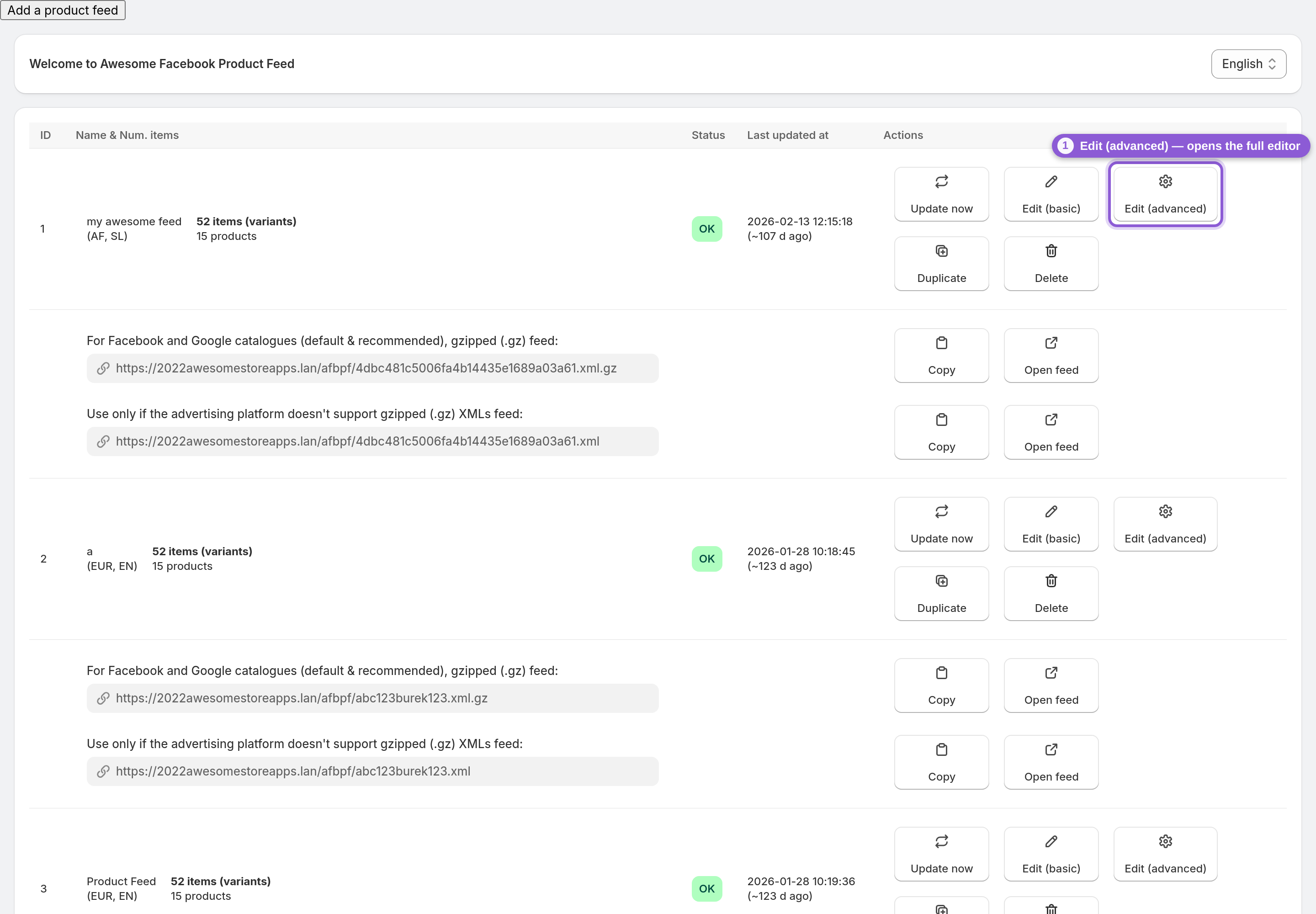
From your dashboard, find the feed you want to configure and click Edit (advanced). If you don't have a feed yet, click Add a product feed first — a new feed is created instantly and you can open it here. Each feed is independent, so you can run different feeds for different channels or countries.
2 Name your feed and set the currency
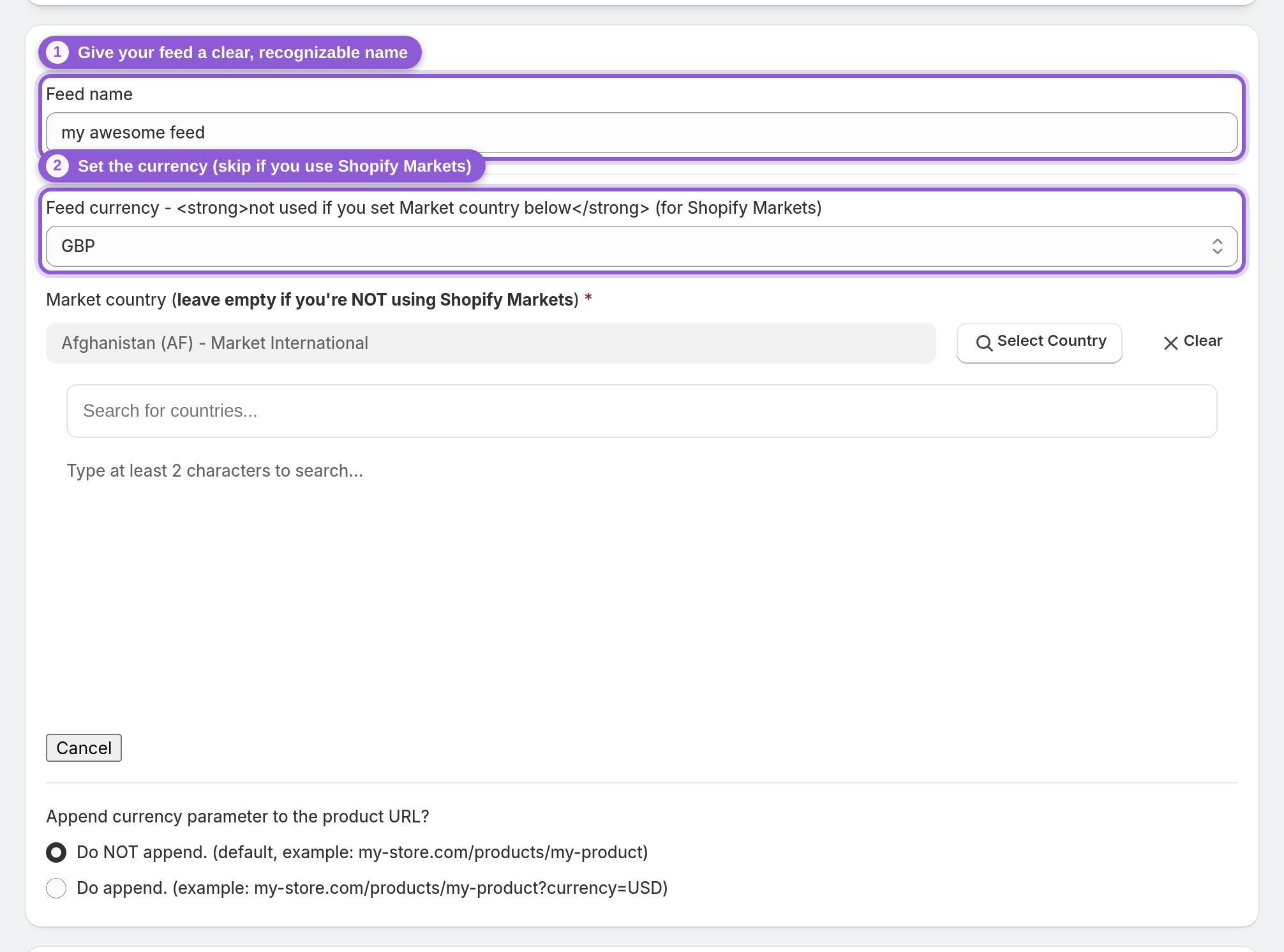
Give the feed a clear, recognizable name — you'll thank yourself later when you have several. Set the feed currency to match the catalog you're submitting to. One thing worth knowing: if you use Shopify Markets, set the Market country instead: the feed then uses that market's prices and currency (nothing is converted) and ignores the feed currency. Leave Market country empty if you're not using Shopify Markets. Advertising in several countries from one catalog? Duplicate this feed per market and add the copies as Facebook country and language feeds.
3 Choose which products to export
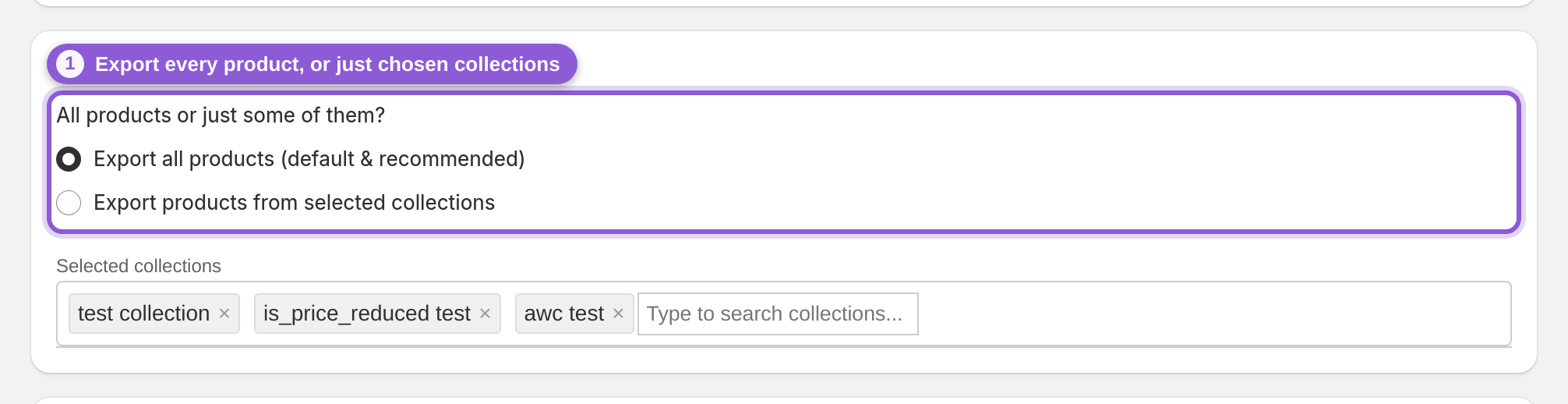
By default the feed exports all products, which is what most stores want. If you'd rather publish a subset — say, a seasonal catalog or a single brand — switch to selected collections and a collection picker appears. Start typing and pick the collections you want; only products in those collections will end up in the feed.
4 Decide how variants are handled
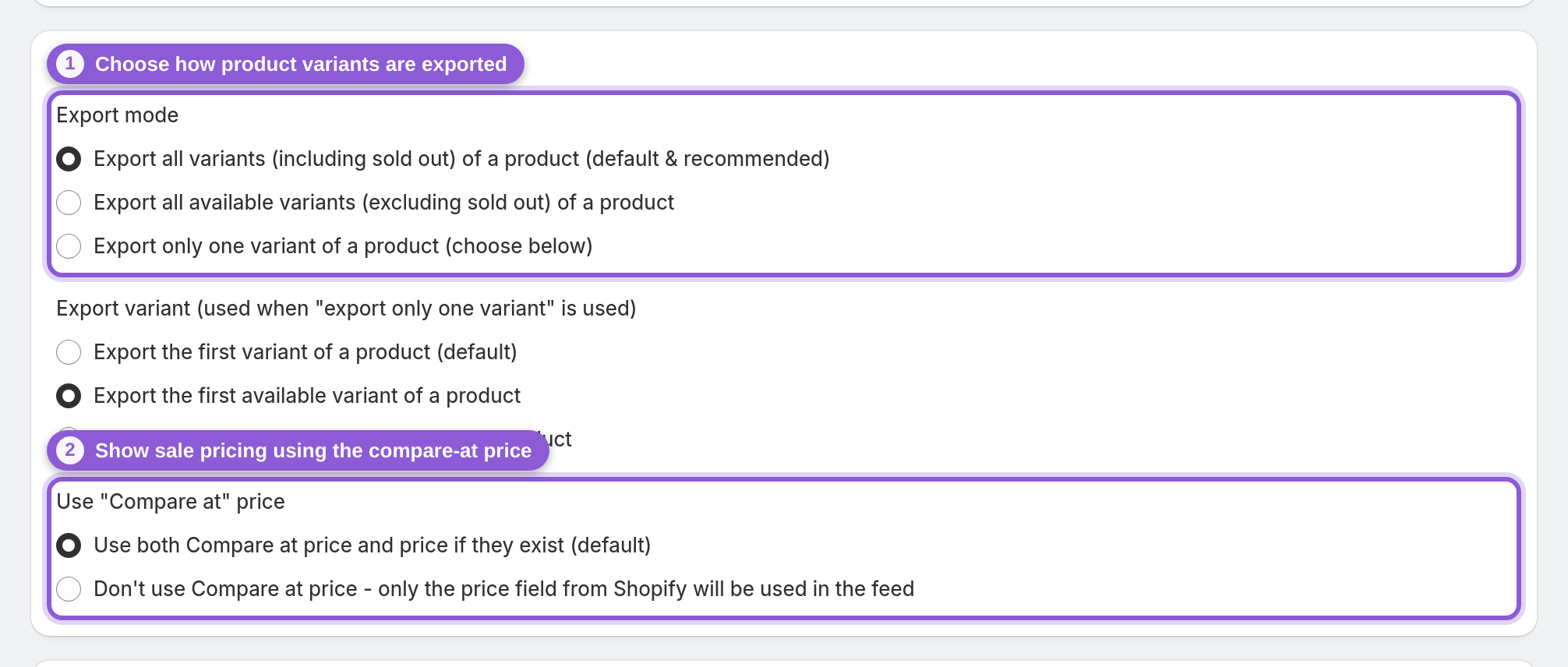
Export mode controls whether you send every variant, only the in-stock ones, or just a single representative variant per product. Exporting all variants is the default and usually the right call for ads. The Compare-at price option lets the feed surface sale pricing — keep it on if you want strikethrough/sale prices to flow through to the channel.
5 Set custom labels for ad segmentation
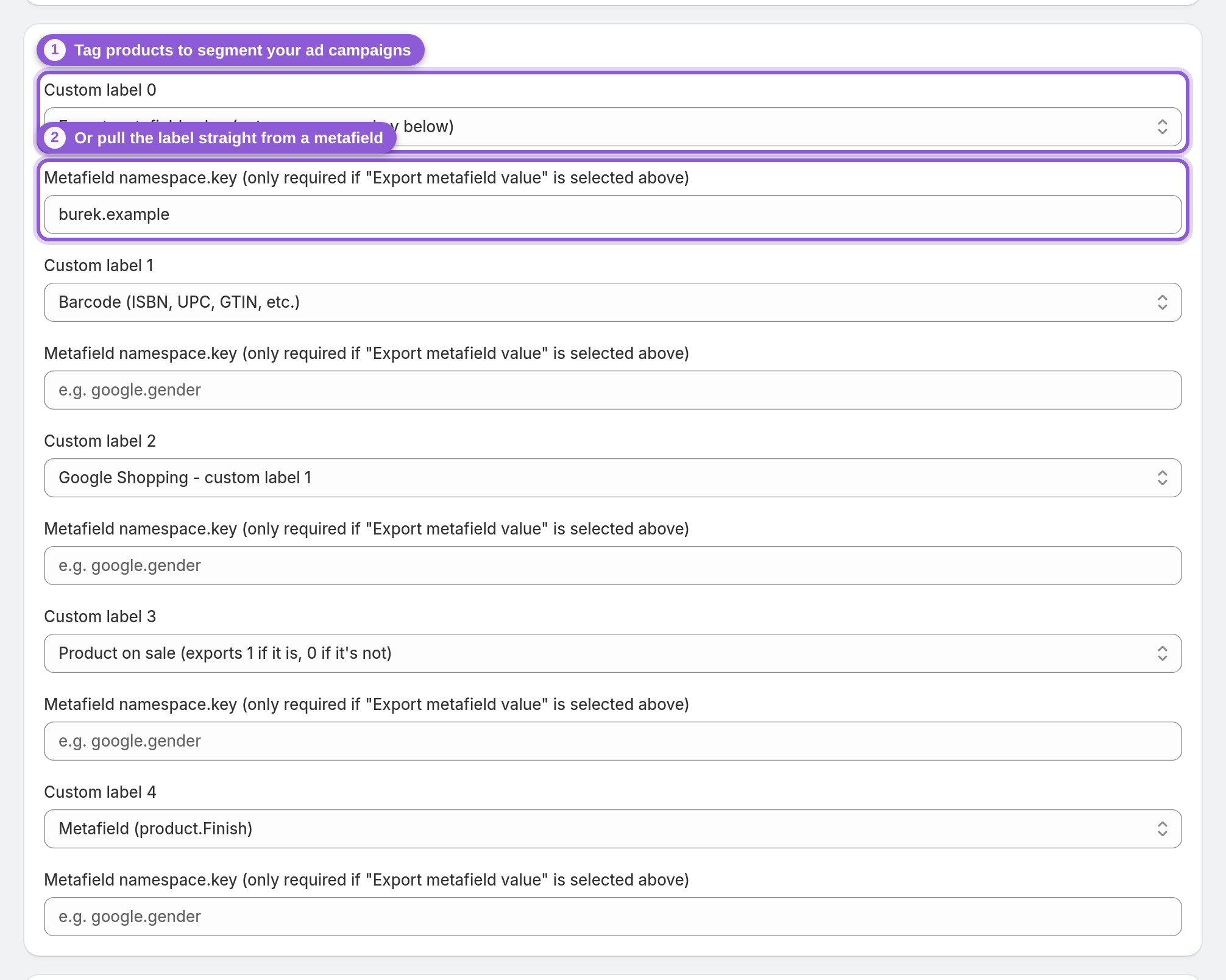
Custom labels (0–4) are your ad team's best friend — they let you slice products into groups inside Facebook and Google Ads (bestsellers, margin tiers, seasonal, clearance, whatever you need). Pick a source for each label from its dropdown (product tags, SKU, inventory quantity, whether the product is on sale and more), or choose Export metafield value and enter a metafield's namespace.key to pull it dynamically per product. Skip these entirely if you're not segmenting campaigns yet. For Facebook product sets that follow a Shopify collection you don't need a custom label at all — the feed's internal labels cover that, see Create Meta product sets from Shopify collections.
6 Pick your product images
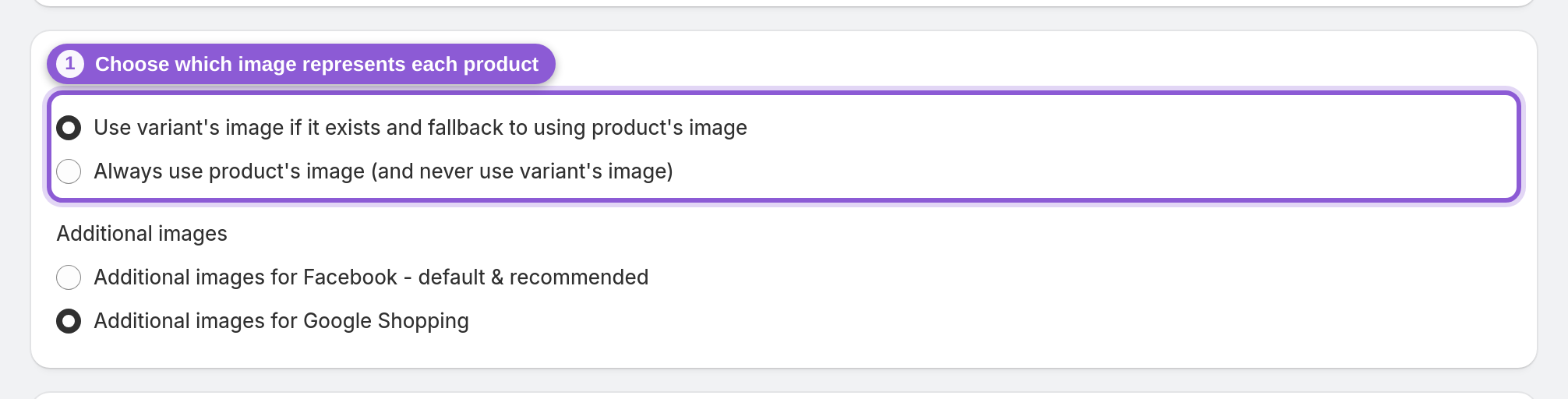
Choose which image represents each product with the image source setting. Extra product images go into the feed when Export additional images is on in Settings, in a format that both Meta and Google read. Most channels show the first image as the main creative and treat the rest as a gallery, so the order in Shopify matters.
7 Resize images to channel specs (optional)
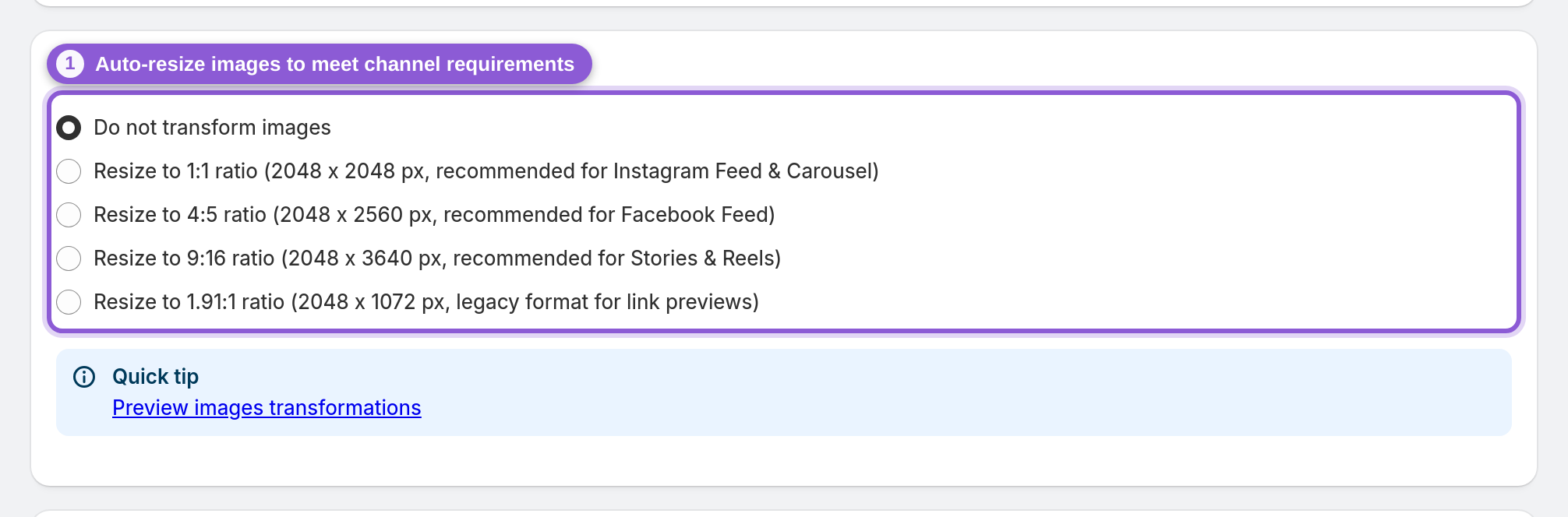
Facebook and Google have minimum image-size requirements, and products with images that are too small get disapproved. Transform (resize) images automatically resizes your images to meet those specs — no re-uploading in Shopify. It's included on every plan.
8 Filter out variants you don't want
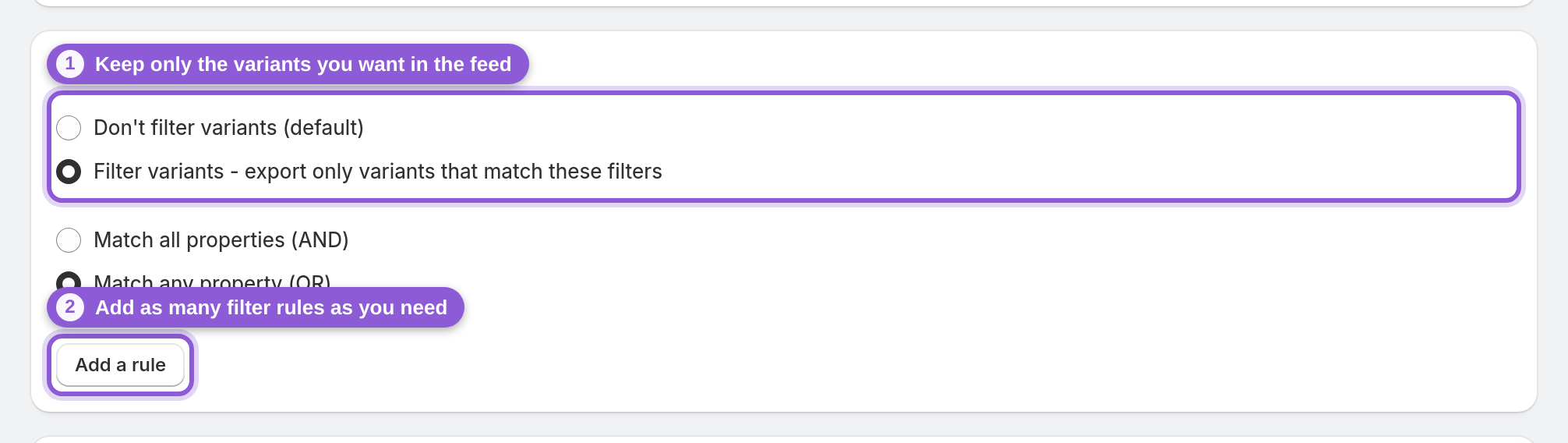
Use Filter variants to keep the feed clean — exclude staff samples, hidden SKUs, or anything that shouldn't be advertised. Choose whether a product must match any or all of your rules, then click Add a rule to build conditions on product options (like Size or Color) or variant fields such as price or inventoryQuantity. Add as many rules as you need.
9 Add UTM tracking, then save
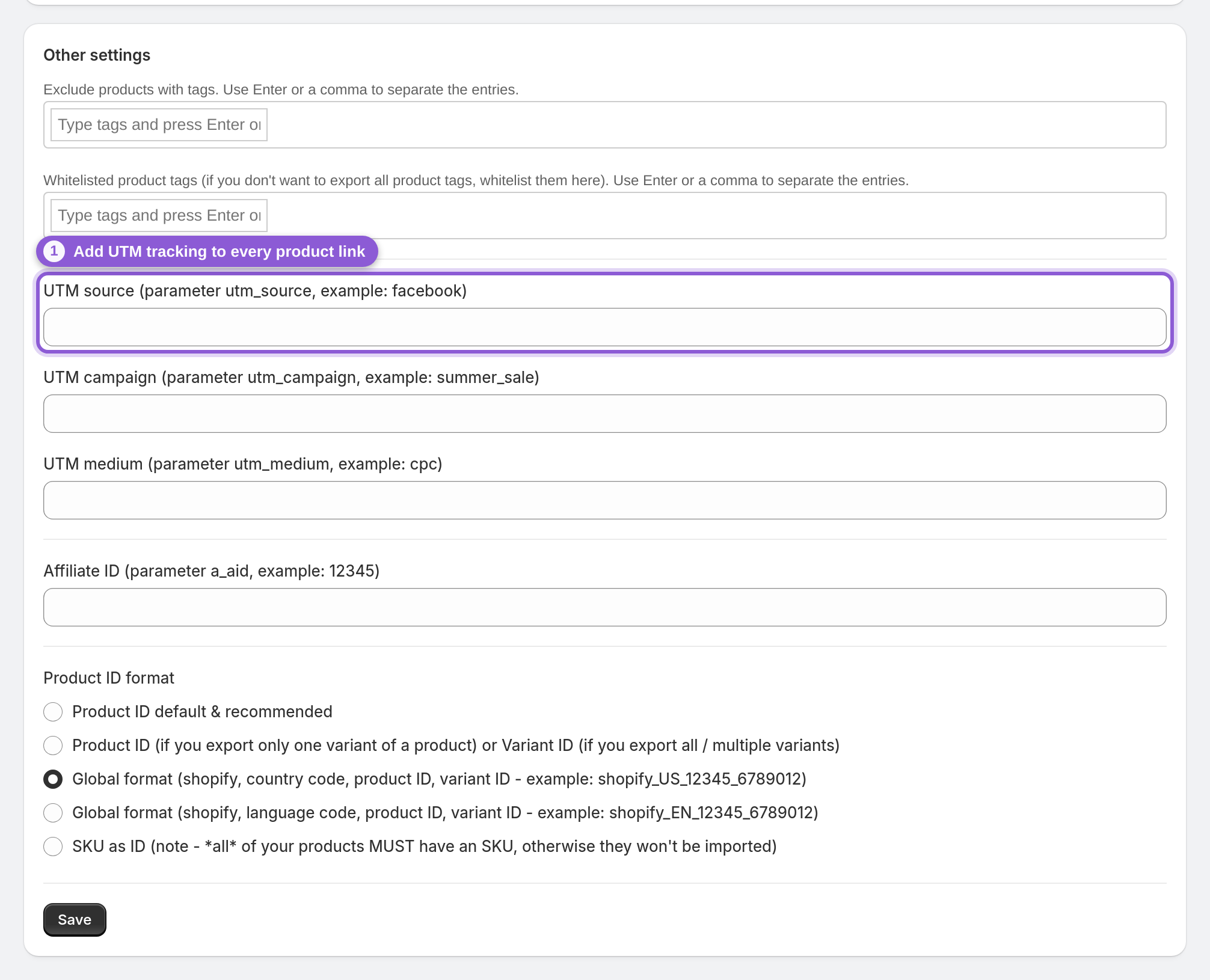
In Other settings you can append UTM parameters (source, campaign, medium) to every product link so your analytics attributes traffic correctly. There's also room for excluded/whitelisted tags and a naming strategy if you need them. When you're happy, hit Save in the bar at the top. The feed rebuilds automatically; then add its feed URL as a scheduled data source in Meta Commerce Manager or Google Merchant Center.
Frequently asked questions
What's the difference between the Basic and Advanced editor?
The Basic editor covers the essentials in a short form and is perfect for getting a feed live fast. The Advanced editor exposes every option — variant rules, custom labels, image transformations, UTM tracking and more. You can switch between them at any time; your settings are preserved.
Do I need to fill in the currency and country?
Only if the feed needs something other than your store's default currency. Left empty, the feed uses your store's base currency and prices. If you use Shopify Markets, set Market country and the feed exports that market's prices, currency and storefront URL; otherwise set the feed currency. Nothing is converted.
What are custom labels used for?
Custom labels let you group products inside Facebook and Google Ads so you can bid and report on segments — for example bestsellers, clearance, or high-margin items. You can set them to a fixed value or pull them dynamically from a product metafield.
My images are being rejected by Facebook. Can the app fix that?
Yes. Turn on Transform (resize) images and the app resizes your product images to meet the channel's minimum-size requirements automatically, without you re-uploading anything in Shopify. It's available on every plan.
How do I limit the feed to specific products?
In Product export settings, switch from 'all products' to 'selected collections' and choose the collections you want. For finer control at the variant level, use the Filter variants section to add rules based on tags, price, inventory and more.
How do I add a Facebook product feed to Shopify?
Install the app, click Add a product feed, then open Edit (advanced) to set your currency, products, variants and images. Hit Save and the app generates a feed URL you can submit to your Facebook catalog (Commerce Manager) — from there it powers your shop and ads.
Does this product feed work for dynamic Facebook ads?
Yes. The Advanced feed keeps your Facebook catalog in sync, which is what dynamic Facebook ads pull from. The app doesn't add a pixel, so retargeting relies on your existing Meta pixel; set the Product ID format so the feed's IDs match it. Use custom labels to segment products into groups for bidding and reporting across your campaigns.
How do I connect my Shopify store to Facebook?
Create your feed in the app and copy its feed URL, then add it as a catalog data source in Facebook Commerce Manager (as a scheduled feed). Facebook re-fetches the feed on a schedule, so your catalog stays in sync as products change.
How do I add products to my Facebook catalog?
Point Facebook at your feed URL: in Commerce Manager, add a data source set to scheduled feed and paste the URL — Facebook imports every product in the feed and refreshes automatically. Use the Filter variants section to control exactly which products are included.
Why don't my variants show up in the Facebook catalog?
Set Export mode to send all variants (not a single representative variant), and check that Filter variants isn't excluding them — the feed lists each variant as its own catalog item. If you also added items by hand in Commerce Manager, let the feed populate them instead, so the two don't clash.