Meta-Produktsets aus Shopify-Kollektionen erstellen (mit internen Labels)
Ein Meta-(Facebook-)Produktset, das eine Shopify-Kollektion abbildet, ist der sauberste Weg, eine dynamische Anzeige, eine Advantage+-Katalogkampagne oder einen Shop-Bereich auf „genau diese Produkte“ auszurichten. Der Feed enthält bereits alles, was Meta dafür braucht: Jedes Produkt wird mit internen Labels exportiert – eines für jede Kollektion, zu der es gehört. Diese Anleitung zeigt das Rezept (Internes Label → ist → deine Shopify-Kollektions-ID), erklärt, warum interne Labels besser sind als der alte Ansatz mit „Kollektions-IDs in einem Custom Label“, und nennt die zwei Fälle, in denen Custom Labels weiterhin das richtige Werkzeug sind.
Sie haben Awesome Feeds noch nicht? Jetzt im Shopify App Store installieren →
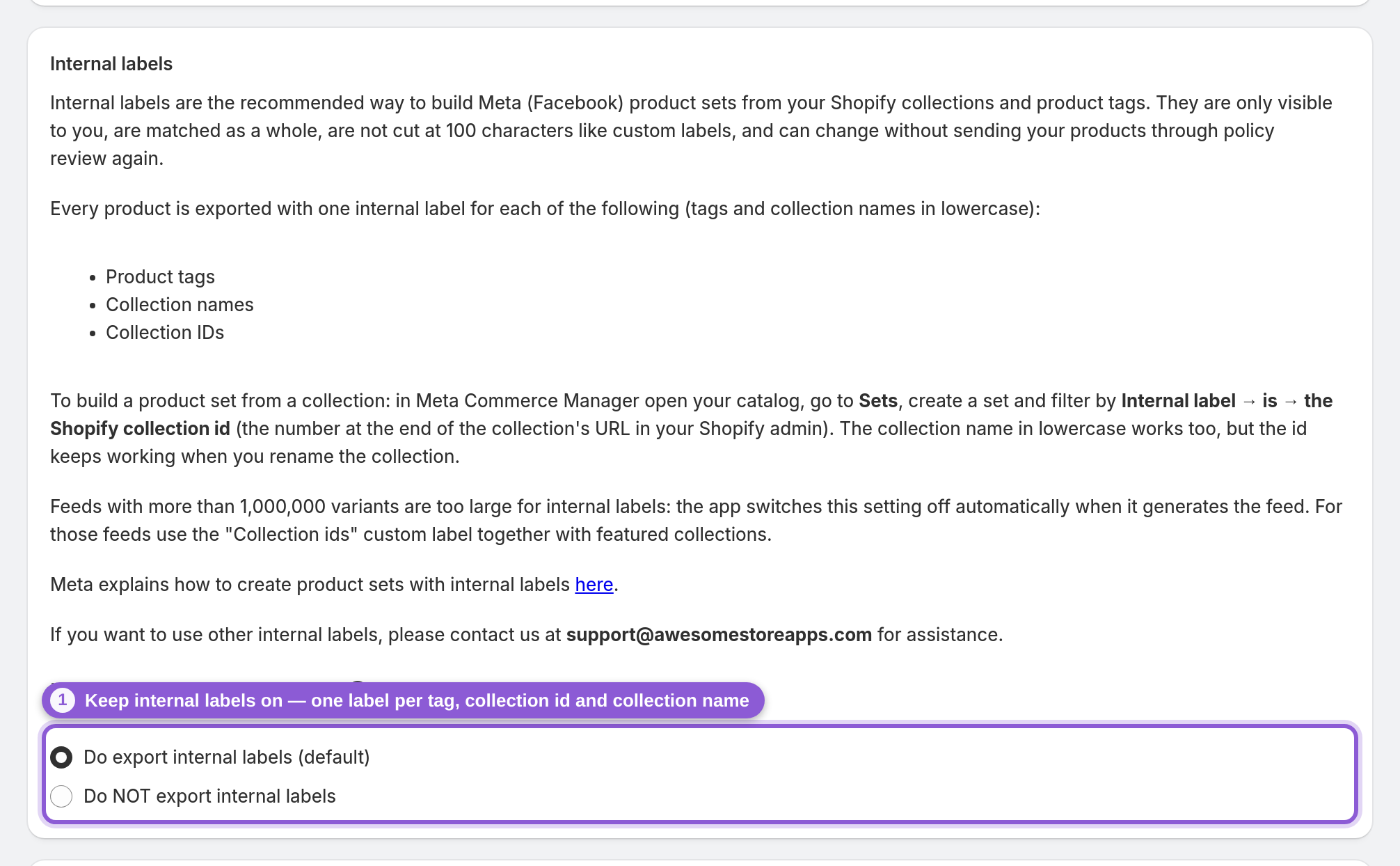
1 Prüfen, ob dein Feed interne Labels exportiert
Öffne deinen Feed im Advanced-Editor (im Dashboard: Actions → Edit (advanced)) und scrolle zum Abschnitt Internal labels. Do export internal labels (default) sollte ausgewählt sein – das ist bei jedem neuen Feed der Fall. Ist die Option aktiv, erhält jedes Produkt im Feed ein internes Label pro Produkt-Tag, pro Kollektions-ID und pro Kollektionsname. Tags und Kollektionsnamen werden kleingeschrieben exportiert; Kollektions-IDs genau so, wie Shopify sie anzeigt. Wenn du die Option gerade erst aktiviert hast, speichere den Feed und warte, bis er neu generiert wurde und Meta ihn erneut abgerufen hat.
2 Die Shopify-Kollektions-ID finden
Öffne in deinem Shopify-Adminbereich Produkte → Kollektionen und klicke auf die Kollektion. Die Kollektions-ID ist die Zahl am Ende der Seitenadresse – bei admin.shopify.com/store/your-store/collections/428137152739 ist es 428137152739. Kopiere sie. Du kannst stattdessen auch nach dem Kollektionsnamen filtern, die ID ist aber die robustere Wahl: Sie ändert sich nie, während eine umbenannte Kollektion ein Set, das nach dem alten Namen filtert, unbemerkt leert.
3 Ein Produktset im Commerce Manager erstellen
Öffne im Meta Commerce Manager den Katalog, dem du deine Feed-URL hinzugefügt hast, gehe zu Sets und wähle Set erstellen mit Filtern (keine manuelle Auswahl). Ein gefiltertes Set bleibt von selbst synchron: Jedes Mal, wenn Meta deinen Feed abruft, kommen Produkte, die der Kollektion hinzugefügt wurden, ins Set, und Produkte, die sie verlassen haben, fallen heraus. Metas eigene Anleitung zu Sets findest du in Metas Leitfaden zu Produktsets.
4 Nach Internes Label → ist → Kollektions-ID filtern
Wähle in der Filterzeile Internes Label, die Bedingung ist und füge die Kollektions-ID aus Schritt 2 ein. Interne Labels werden als Ganzes abgeglichen, daher trifft 428137152739 nur Produkte, die genau dieses Label tragen – nie ein Produkt, dessen Label diese Ziffern bloß enthält. Der Commerce Manager zeigt sofort eine Vorschau der passenden Produkte; die Anzahl sollte ungefähr der Zahl der Produkte dieser Kollektion in deinem Feed entsprechen.
5 Kollektionen kombinieren, dann das Set benennen und speichern
Füge weitere Filterzeilen hinzu, um Labels zu kombinieren: beliebige von mehreren Kollektions-IDs für ein breiteres Set oder alle, um es einzugrenzen (zum Beispiel die Kollektions-ID plus das interne Label bestseller, das aus dem Produkt-Tag stammt). Gib dem Set einen Namen, den dein Anzeigenteam wiedererkennt – der Name der Shopify-Kollektion eignet sich gut – und speichere. Das Set steht nun zur Verfügung, wenn du eine Advantage+-Katalog-Anzeige oder eine Shop-Kollektion erstellst.
6 Wann du weiterhin Custom Labels und hervorgehobene Kollektionen brauchst
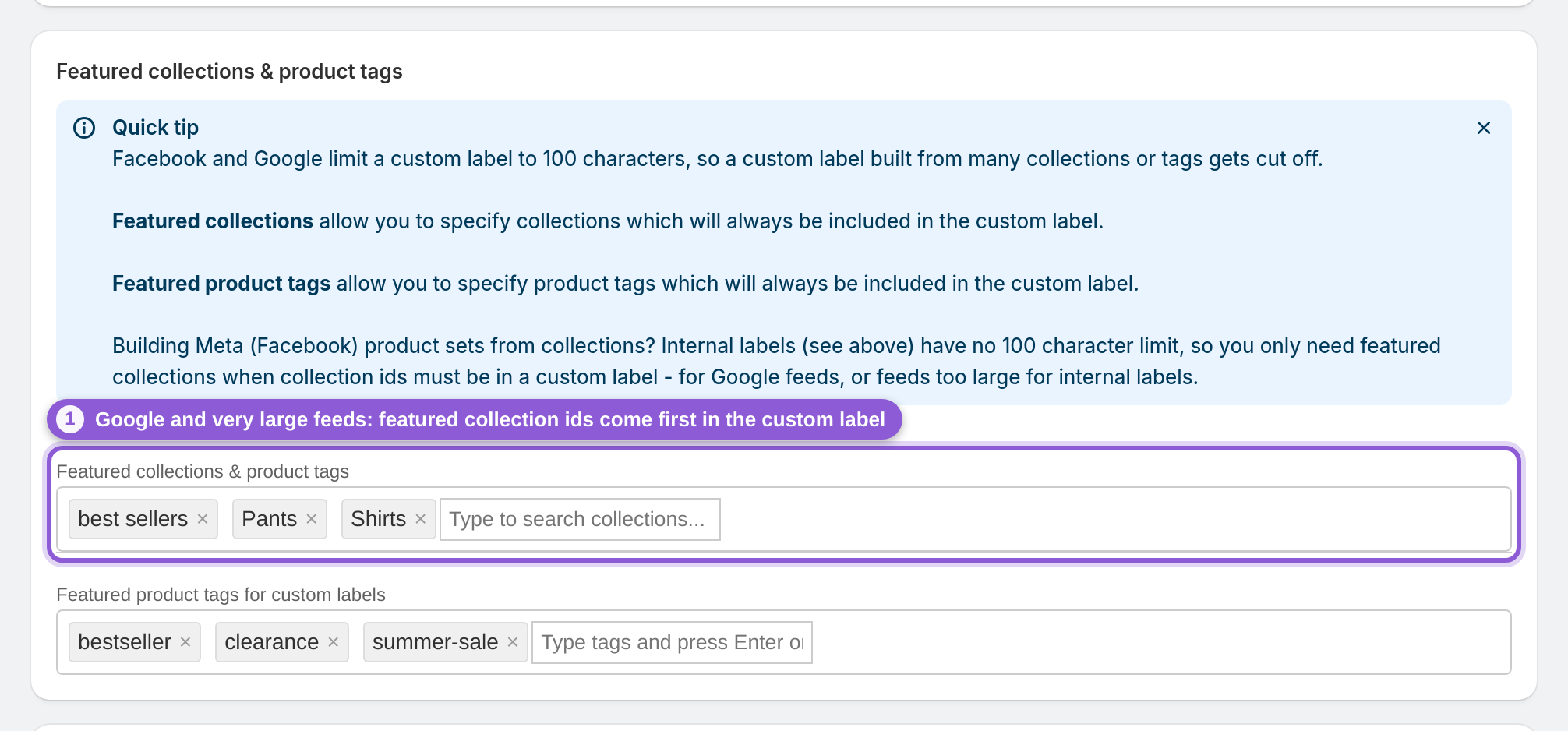
Für das Custom Label Collection ids (comma separated) bleiben zwei Fälle. Google: Das Google Merchant Center kennt keine internen Labels, daher sind custom_label_0–4 bei Google-Feeds weiterhin die einzige Möglichkeit zur Segmentierung. Sehr große Feeds: Ab 1.000.000 Varianten schaltet die App interne Labels beim Generieren des Feeds automatisch ab (der Editor zeigt dann Do NOT export internal labels). In beiden Fällen fasst ein Custom Label höchstens 100 Zeichen, also trage die Kollektionen, nach denen du filterst, unter Featured collections ein – ihre IDs werden an den Anfang gestellt und überstehen die Kürzung.
Häufig gestellte Fragen
Wie erstelle ich ein Facebook-Produktset aus einer Shopify-Kollektion?
Stelle sicher, dass dein Feed interne Labels exportiert (standardmäßig der Fall), kopiere die Kollektions-ID aus der Adresse der Kollektion in deinem Shopify-Adminbereich, öffne dann im Meta Commerce Manager deinen Katalog, gehe zu Sets, erstelle ein gefiltertes Set und wähle Internes Label → ist → die Kollektions-ID. Das Set füllt sich mit den Produkten dieser Kollektion und bleibt bei jedem Abruf des Feeds durch Meta synchron.
Was ist ein internes Label in einem Meta-Katalog?
Ein internes Label ist ein Katalogfeld, das zum Erstellen von Produktsets gedacht ist. Labels sind nur für dich sichtbar – Käufer sehen sie nie – und ein Produkt kann bis zu 5.000 davon tragen, jedes bis zu 110 Zeichen lang. Die App schreibt ein internes Label für jeden Produkt-Tag, jede Kollektions-ID und jeden Kollektionsnamen eines Produkts.
Warum sind interne Labels für Produktsets besser als Custom Labels?
Aus vier Gründen. Sie werden als Ganzes abgeglichen, sodass ein Filter nie versehentlich ein Produkt erfasst. Es gibt keine Kürzung auf 100 Zeichen: Einem Custom Label mit einer kommagetrennten Liste von Kollektions-IDs geht nach etwa sieben IDs der Platz aus, sodass Produkte in vielen Kollektionen einige verlieren. Meta erlaubt Änderungen an internen Labels, ohne den Artikel erneut durch die Richtlinienprüfung zu schicken, die sonst die Anzeigenauslieferung beeinträchtigen kann. Und sie sind für Käufer unsichtbar, während Custom Labels für Text gedacht sind, den du in Anzeigen-Creatives zeigen kannst.
Soll ich nach der Kollektions-ID oder dem Kollektionsnamen filtern?
Bevorzuge die ID. Beides wird exportiert, aber die ID ändert sich nie, während das Umbenennen einer Kollektion in Shopify das Label ändert und jedes Set leert, das nach dem alten Namen filtert. Wenn du doch den Namen verwendest, gib ihn kleingeschrieben ein – so exportiert ihn der Feed.
Kann ich auch Produkt-Tags in einem Produktset verwenden?
Ja. Jeder Produkt-Tag wird kleingeschrieben als internes Label exportiert, daher funktioniert ein Filter wie Internes Label → ist → bestseller genauso, und du kannst Tag-Labels mit Kollektions-IDs in einem Set kombinieren.
Funktioniert das auch für Google-Shopping-Feeds?
Nein. Das Google Merchant Center hat kein Feld für interne Labels. Segmentiere bei Google mit den fünf Custom Labels (custom_label_0–4); jedes enthält einen Wert mit bis zu 100 Zeichen, und Google erlaubt bis zu 1.000 eindeutige Werte pro Label über dein gesamtes Konto.
Mein Feed ist sehr groß – warum ist „Do NOT export internal labels“ ausgewählt?
Feeds mit mehr als 1.000.000 Varianten sind zu groß, um interne Labels zu enthalten, daher schaltet die App die Einstellung beim Generieren des Feeds automatisch ab. Lege bei solchen Feeds Collection ids (comma separated) in ein Custom Label, füge die Kollektionen, nach denen du filterst, unter Featured collections hinzu, damit ihre IDs zuerst kommen, und filtere das Produktset nach diesem Custom Label mit der Bedingung „enthält“.
Enthalten Länder- und Sprach-Feeds interne Labels?
Nein. Ein Feed mit Überschreibungswerten (ein Meta-Länder- oder Sprach-Feed) lokalisiert nur Produkte, die bereits in deinem Katalog sind, daher lässt die App interne Labels darin weg und hält die Datei klein. Deine Produktsets beziehen ihre internen Labels aus deinem Haupt-Feed, erstelle sie also wie gewohnt im Katalog des Haupt-Feeds.
Kann ich andere interne Labels exportieren, zum Beispiel aus einem Metafeld?
Die App exportiert Produkt-Tags, Kollektions-IDs und Kollektionsnamen. Wenn du andere interne Labels brauchst, schreib uns an support@awesomestoreapps.com – wir helfen dir bei der Einrichtung.
Ich verwende bereits Kollektions-IDs in einem Custom Label. Muss ich etwas ändern?
Bestehende Sets funktionieren weiter. Es lohnt sich aber, Sets für Kollektionen umzustellen, deren Produkte in vielen Kollektionen sind, denn genau diese verlieren IDs durch das 100-Zeichen-Limit – erstelle das neue Set mit dem internen Label, prüfe, ob die Produktanzahl mindestens so hoch ist wie beim alten, und richte dann deine Anzeigen darauf aus.
Kann die App die Produktsets für mich erstellen?
Nein. Die App erstellt oder synchronisiert keine Produktsets für dich. Du erstellst sie selbst im Meta Commerce Manager mit dem oben beschriebenen Rezept für interne Labels. Dieses Rezept benötigt keine Facebook-Verbindung und funktioniert in jedem Katalog, in den dein Feed geladen wird.
Wie lange dauert es, bis ein neues Produkt im Set erscheint?
Ein Produkt erscheint, sobald die App deinen Feed neu erstellt und Meta ihn erneut abgerufen hat. Die App erstellt den Feed nach Produkt- oder Kollektionsänderungen automatisch neu. Zwischen zwei Neuerstellungen wartet jeder Feed eine Weile: etwa 16–24 Minuten bei Feeds mit bis zu 1.000 Produkten, länger bei größeren Feeds. Mit Update now stellst du sofort eine Neuerstellung in die Warteschlange. Meta ruft den Feed nach dem Zeitplan ab, den du für den Datenfeed im Commerce Manager festgelegt hast – üblich sind stündlich oder täglich.