Choose Exactly Which Products and Variants Go in Your Facebook Feed
Your whole catalog rarely belongs in one Facebook feed. Staff samples, hidden SKUs, an off-season range, a wholesale-only brand — plenty of products should never reach your ads. The Advanced editor gives you two layers of control: product-level gates that keep whole products out (collections and excluded tags), and variant-level filters that thin each product down to the variants you actually want to advertise (export mode and the Filter-variants rule builder). This guide walks every control so you can dial the feed in to exactly the right set — and calls out which ones remove items versus which ones just tidy up the feed's data.
Don't have Awesome Feeds yet? Install it from the Shopify App Store →
1 Open the Advanced editor
All of these controls live in the Advanced editor, so start there. From your dashboard, find the feed you want to trim and click Edit (advanced). The Basic editor covers products and collections too, but the excluded tags, whitelist and variant rule builder in this guide are Advanced-only. Each feed filters independently, so you can run a broad feed for one channel and a tightly filtered one for another.
![Open the Advanced editor — s-button[href$='/productFeed/edit/1'] highlighted](/docs-assets/img/filter-products-and-variants/00-dashboard-edit.png?2b7e1035)
2 Export all products, or only selected collections
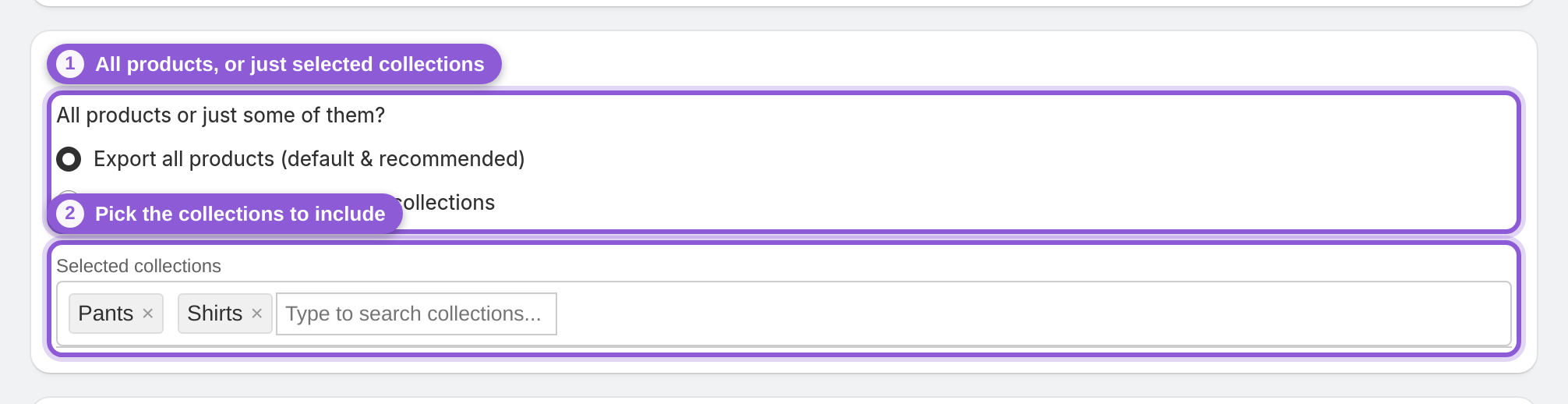
This is the widest gate. Export all products (default & recommended) keeps your entire catalog in sync; switch to Export products from selected collections and a Selected collections picker appears. Start typing, choose the collections you want, and only products in those collections make it into the feed. This is the cleanest way to publish a seasonal subset or a single brand — build a Shopify collection for it, then point the feed at that collection and let it maintain itself as products come and go.
3 Exclude whole products by tag
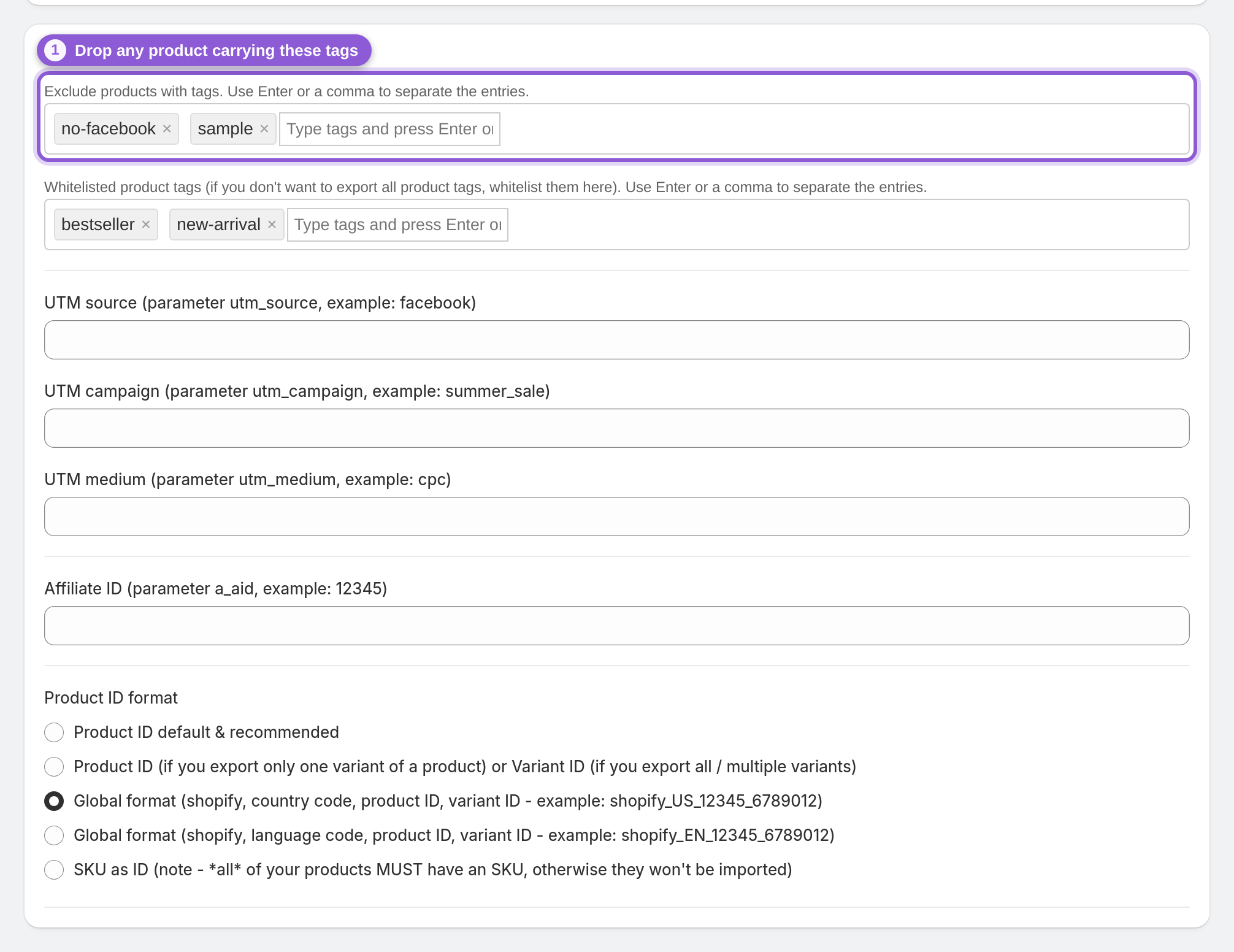
Open the Other settings section and use Exclude products with tags. Any product carrying one of these tags is dropped from the feed entirely — the fastest way to hold back staff samples, hidden or discontinued SKUs, or wholesale-only items without touching your collections. Tag those products in Shopify (for example no-facebook or sample), add the same tags here, and press Enter or a comma between entries. It's a blocklist: matching products are removed, everything else stays.
4 Keep only the variants that are in stock
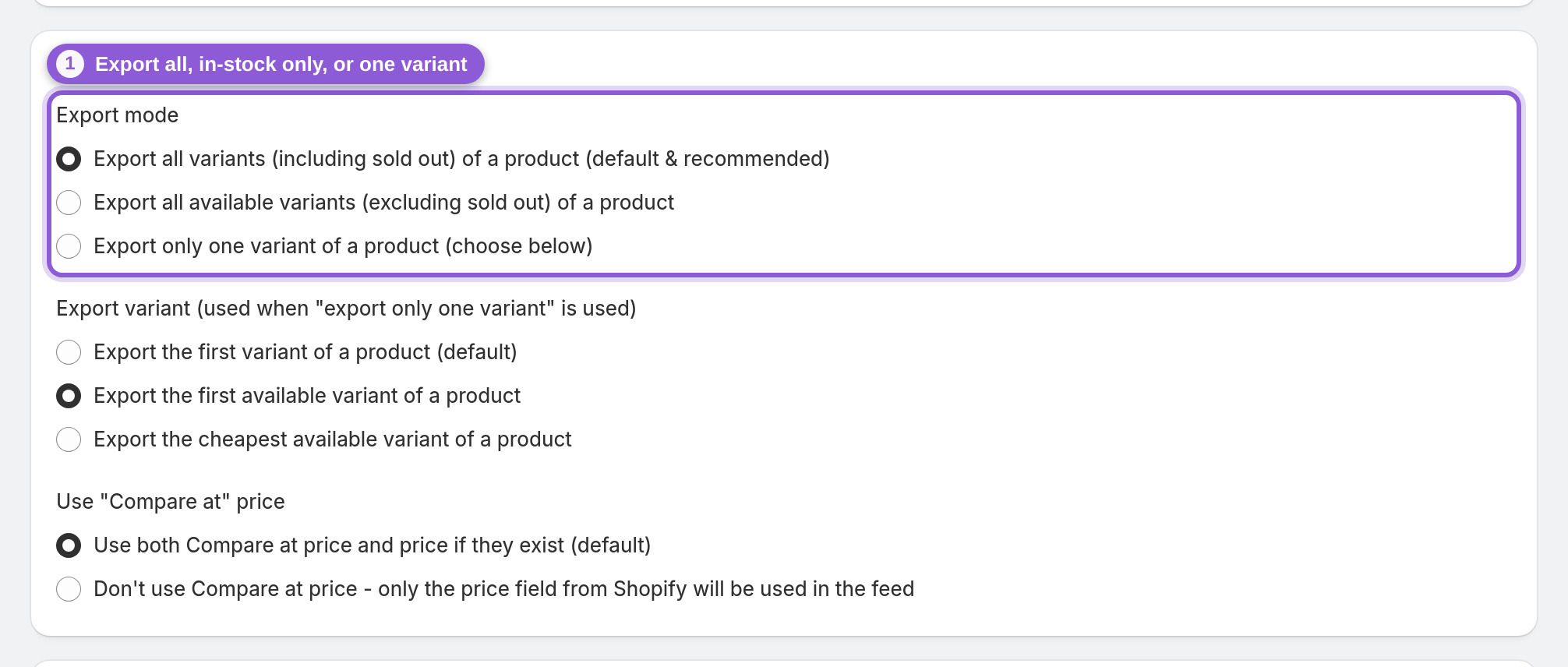
Export mode in the Variant export settings section decides how many variants each product contributes. The default exports all variants (including sold out), which keeps sold-out items in your catalog, marked as out of stock. Choose all available variants (excluding sold out) to drop out-of-stock variants automatically, or only one variant to send a single representative variant per product. This is variant-level: it thins each product down rather than removing products outright.
5 Turn on Filter variants and choose how rules combine
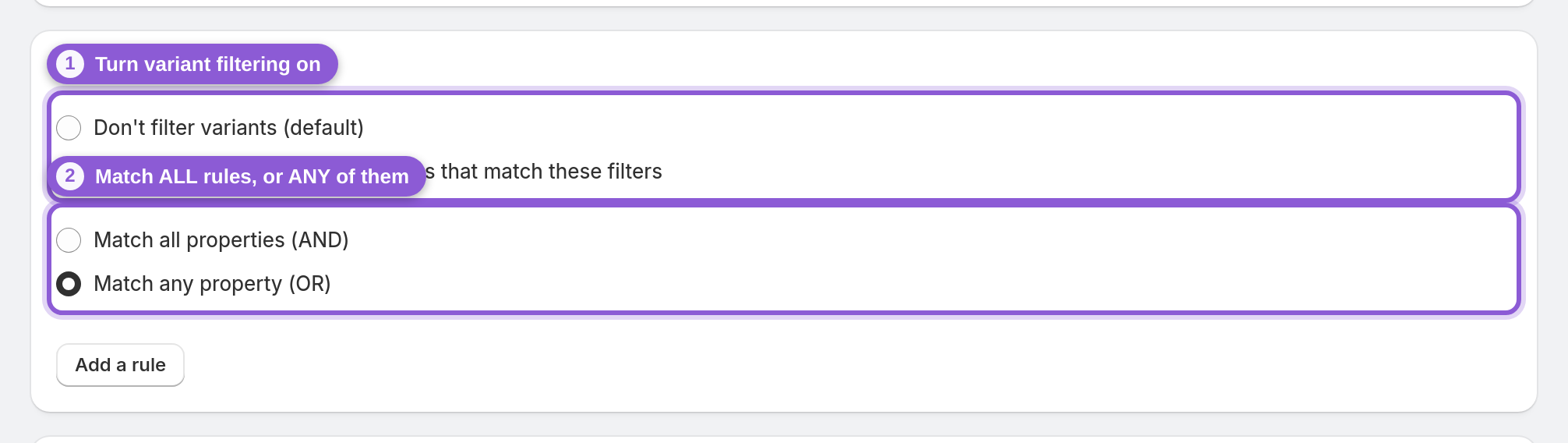
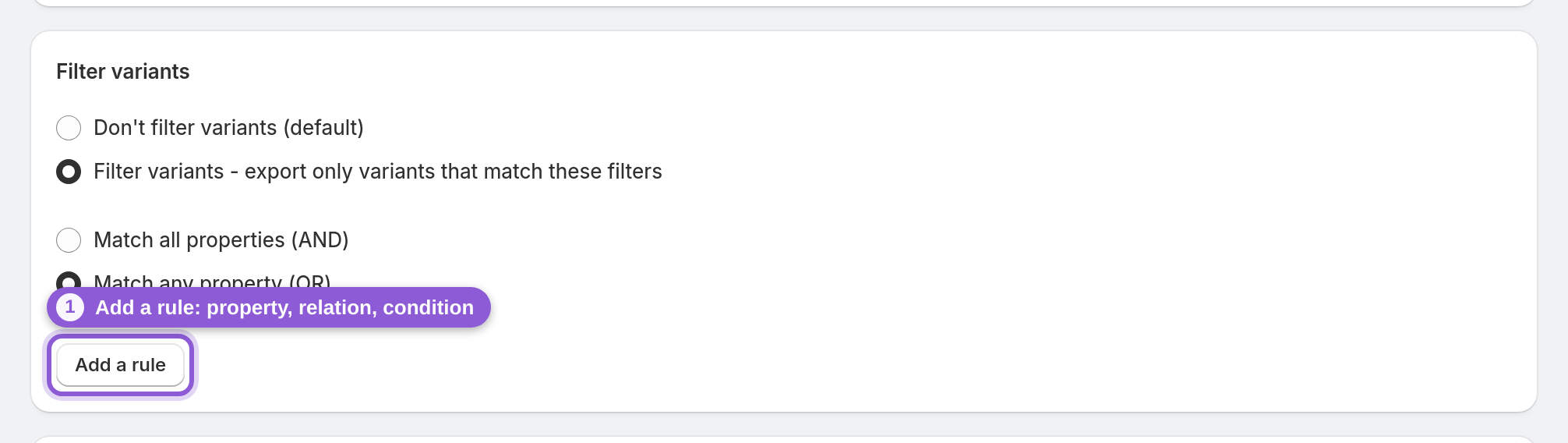
For finer control, open Filter variants and switch it to Filter variants - export only variants that match these filters. Then pick how your rules combine: Match all properties (AND) keeps a variant only when it satisfies every rule, while Match any property (OR) keeps it when it satisfies at least one. Use AND to stack narrowing conditions (in a price band and a specific size); use OR to gather several acceptable cases into one feed.
6 Build a variant rule: property, relation, condition
Click Add a rule to add a row with three parts: a Property, a Relation, and a Condition. The Property is the name of one of the product's options (like Size or Color) or a variant field such as price — type it exactly as it appears. The Relation is one of Equals, Does not equal, Contains, Does not contain, Contains any of (CSV), Greater than (>) or Less than (<). The Condition is the value to test against. So Size / Does not equal / XXL drops the XXL variant, and price / Greater than (>) / 10 keeps only variants priced over 10 in your store's base currency (the Shopify variant price, not a Markets price) — greater/less comparisons use whole numbers (decimals are dropped, so 10.99 counts as 10), so they suit price floors and, with the inventoryQuantity field, stock thresholds across all locations. Add as many rows as you need; they combine using the AND/OR choice from the previous step.
7 Limit which product tags get written to the feed
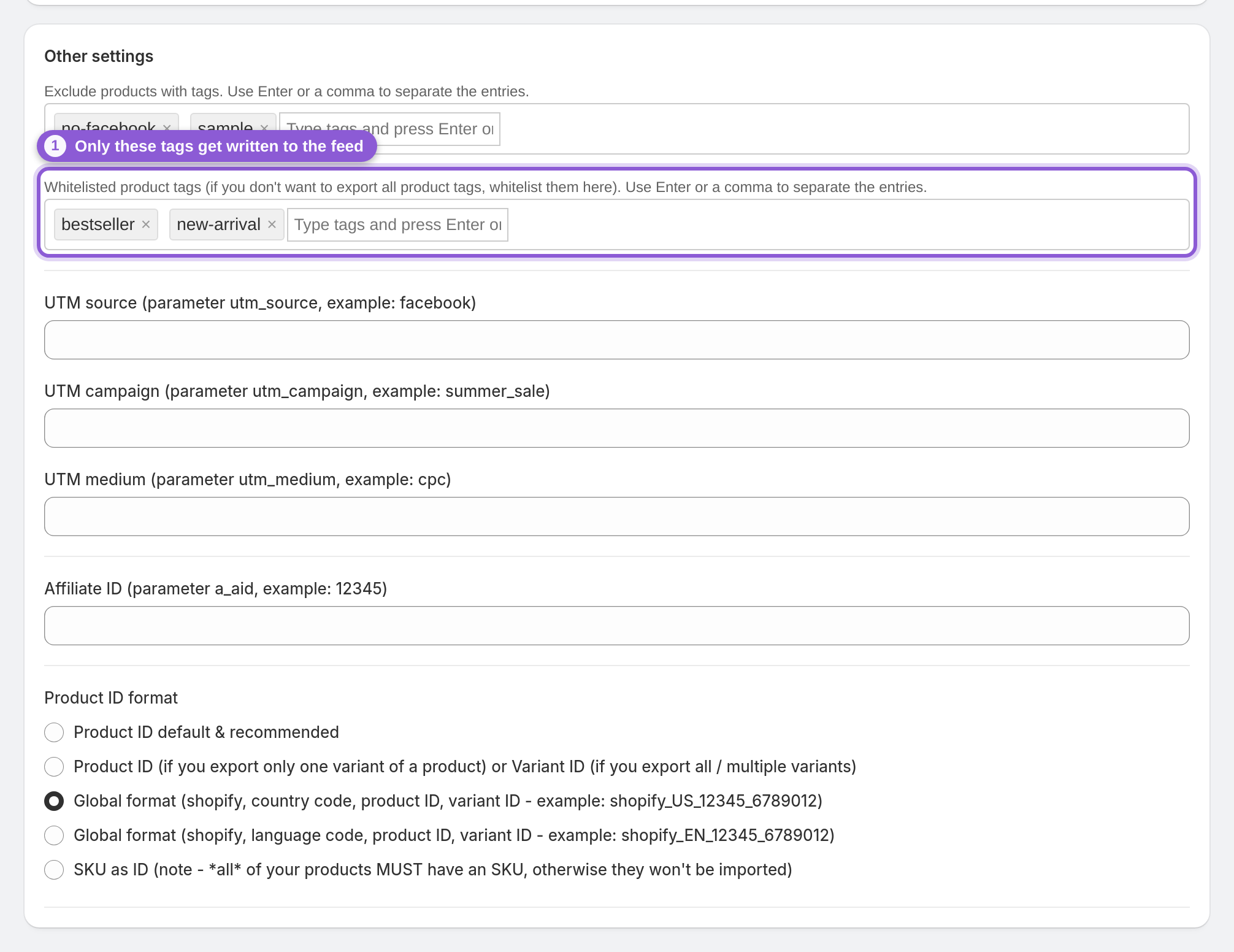
Back in Other settings, Whitelisted product tags does something different from the exclude field: it doesn't remove products, it limits which of a product's tags are exported into the feed's data. Leave it empty and every product tag flows through; add tags here and only those are written out. Reach for this when your Shopify tags include internal notes you don't want appearing in your catalog. Press Enter or a comma between entries.
8 Trim option names out of variant titles
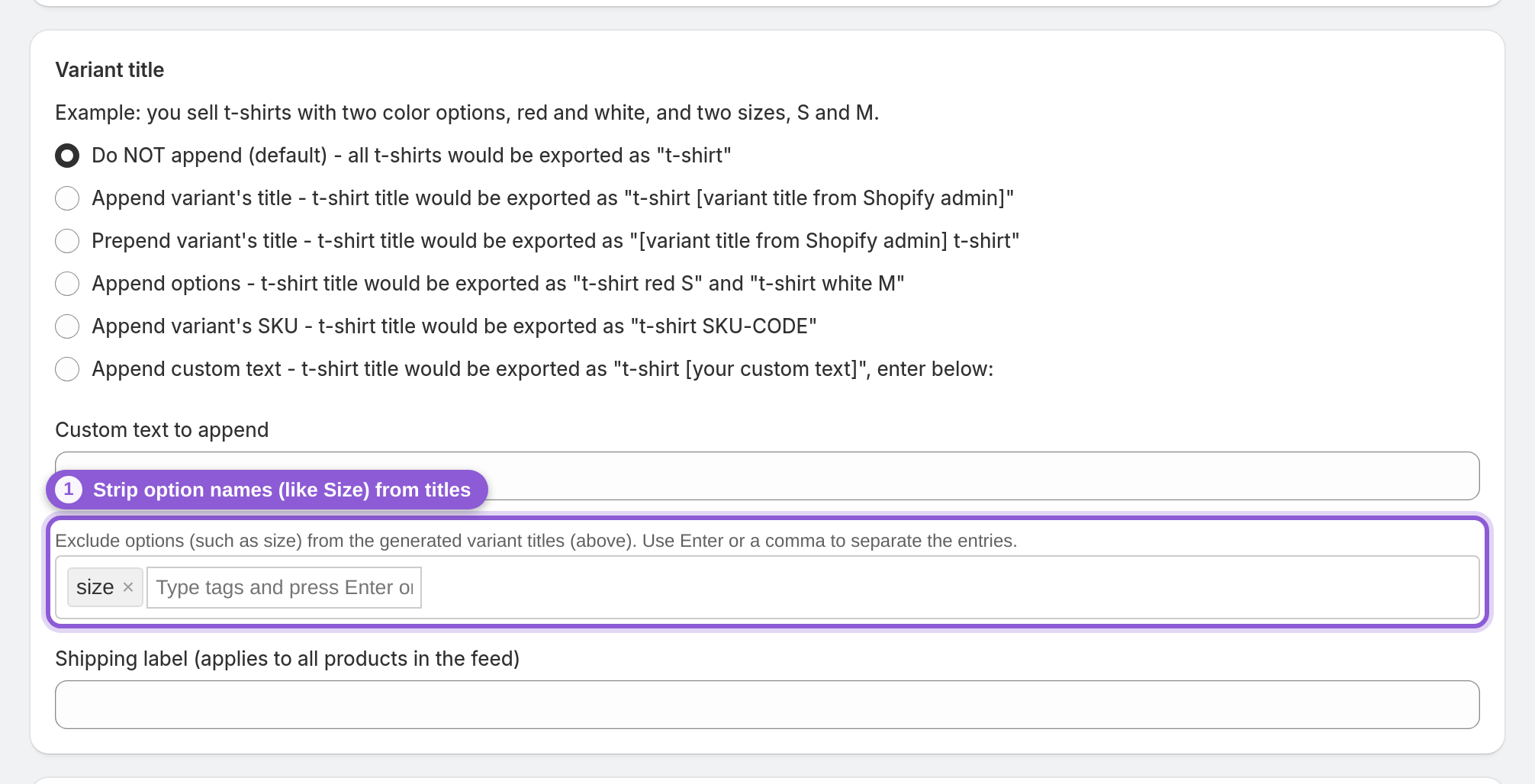
In the Variant title section, Exclude options (such as size) cleans up the generated variant titles rather than filtering variants. List the option names you don't want appended to titles — for example add Size so a title reads "Blue Cotton Tee" instead of "Blue Cotton Tee - S". It changes how variants are labeled in the feed; it does not add or remove any variant. When your filters and titles look right, hit Save in the bar at the top and the feed regenerates automatically.
Frequently asked questions
How do I exclude specific products from my Facebook feed?
Tag those products in Shopify, then add the same tags under 'Exclude products with tags' in the Advanced editor's Other settings. Every product carrying one of those tags is removed from the feed. It's the quickest way to hold back samples, hidden SKUs or wholesale-only items.
How do I put only certain collections in the feed?
In Product export settings, switch from 'Export all products' to 'Export products from selected collections' and choose your collections. Only products in those collections are exported, which is ideal for a seasonal range or a single brand. The feed updates itself as products move in and out of the collection.
How do I keep out-of-stock products out of the feed?
Set Export mode to 'all available variants (excluding sold out)' and sold-out variants are dropped automatically. Note the default keeps sold-out variants on purpose, so sold-out items stay in your catalog marked as out of stock. Choose whichever fits your strategy.
What's the difference between excluding by tag and the Filter variants rules?
Excluding by tag works at the product level — a matching product is removed whole. Filter variants works at the variant level, keeping only the variants that match your rules. If every variant of a product gets filtered out, that product simply won't appear in the feed.
How do I filter variants by size or colour?
Turn on Filter variants, then add a rule whose Property is the option name (like Size or Color), pick a relation such as 'Does not equal' or 'Contains any of (CSV)', and enter the value. For example Size / Does not equal / XXL removes the XXL variant from every product that has that option.
Can I set a minimum price so cheap items are left out?
Yes. Add a Filter variants rule with Property 'price', relation 'Greater than (>)' and your floor as the condition — only variants above that value are exported. Greater-than and less-than compare whole numbers (decimals are dropped, so 10.99 counts as 10). They also work for inventory thresholds with the Property 'inventoryQuantity' (stock across all locations combined).
Should I use Match all or Match any for my rules?
Use 'Match all properties (AND)' when a variant must satisfy every condition at once — for instance a price band and a specific option. Use 'Match any property (OR)' when several different cases are all acceptable and you want any one of them to qualify the variant.
My Property rule isn't doing anything — why?
The Property has to match a real product option name or variant field exactly, so check the spelling against the option as it appears in Shopify. If it matches neither, the rule is ignored, and if none of your rules match, the variant is kept. Only the first letter of the Property ignores case ('Size' and 'size' both work, 'SIZE' doesn't); for variant fields use Shopify's field name, such as price or inventoryQuantity. 'Equals' and 'Does not equal' are case-sensitive on the Condition, while the 'Contains' relations ignore case.
Does the whitelist remove products from the feed?
No. 'Whitelisted product tags' only controls which of a product's tags are written into the feed data — it never removes a product. To remove products, use 'Exclude products with tags' or the collections setting instead.
Does 'Exclude options' remove variants from the feed?
No. That setting only strips option names (like Size) out of the generated variant titles so they read more cleanly. All your variants still export — it changes labeling, not which items are included.