Facebook Product Sets and Catalog Rules for Shopify
Facebook Product Sets are how you slice one big catalog into smaller, targeted groups — think "summer collection", "clearance", or "high-margin bestsellers". Facebook dynamic ads and your shop point at a Product Set, so getting these right is what lets you run focused campaigns instead of advertising your whole store at once. With Facebook rules the app was meant to build and refresh those sets from your Shopify collections, but that feature isn't working right now. Instead, build each set in Commerce Manager by filtering on the Shopify collection IDs Awesome Feeds adds to your feed as internal labels — include some, exclude others — with no manual product-picking in Commerce Manager. This guide walks through creating a set, writing its rules, and keeping its products in sync.
Don't have Awesome Feeds yet? Install it from the Shopify App Store →
1 Open Facebook rules for a catalog
In Meta Commerce Manager, open your catalog's product sets and filter on the internal label that holds the Shopify collection ID. Each set of rules belongs to one Facebook Product Catalog, so if you manage more than one catalog use the Switch product catalog dropdown to pick the one you're working in. The page lists every Product Set in that catalog, split into ones this app manages and unmanaged sets (those you created by hand in Facebook Business Manager or via another integration). Use Show / hide unmanaged product sets to peek at the latter.

2 Read the Product Sets table
The table gives you one row per managed Facebook Product Set with these columns: Facebook Product Set (its name, product count, and a link straight to it on Facebook), Rules (a plain-English summary of what it matches), Refresh products, Edit, and Delete. This is your home base — everything you do to a set starts from one of these links.

3 Add a Facebook Product Set
Click Add a Facebook Product Set. Create the set in Commerce Manager instead; the app does not create sets in your catalog. There's nothing to fill in up front — a set starts empty and gets its products from the rules you write next.

4 Include products from collections
In the editor, under Choose products to include and exclude from the product set, you get two rule rows. The first is Include products from these collections: start typing and pick every Shopify collection whose products belong in the set — "Summer", "New arrivals", "Bestsellers", as many as you like. A product in any of the chosen collections is included. You can also give the set a Product Set Name here; that's the name you'll see in Commerce Manager. This is the core of Facebook catalog segmentation on Shopify: build a collection for the segment, then point the set at it.

5 Exclude products from collections
The second row is Exclude products from these collections. Anything in a collection you pick here is kept out of the set even if it also matched an include rule — handy for holding back a "clearance" or "samples" collection from a full-price campaign. Leave it empty if nothing needs excluding, then Save. Because the set filters on the collection-ID internal label in your feed, its contents follow your collections once the feed rebuilds and Meta re-fetches it.

6 Refresh and verify products
Rules don't only run once. To update a set's contents, change your Shopify collections; the feed rebuilds automatically and Meta picks up the change on its next fetch — handy after you've changed collections or edited the rules. It runs in the background, so give it a moment and refresh the page for the updated count. Use the Facebook Product Set link to open it in Commerce Manager, see exactly which items landed in the set, and confirm it's wired into your ads.
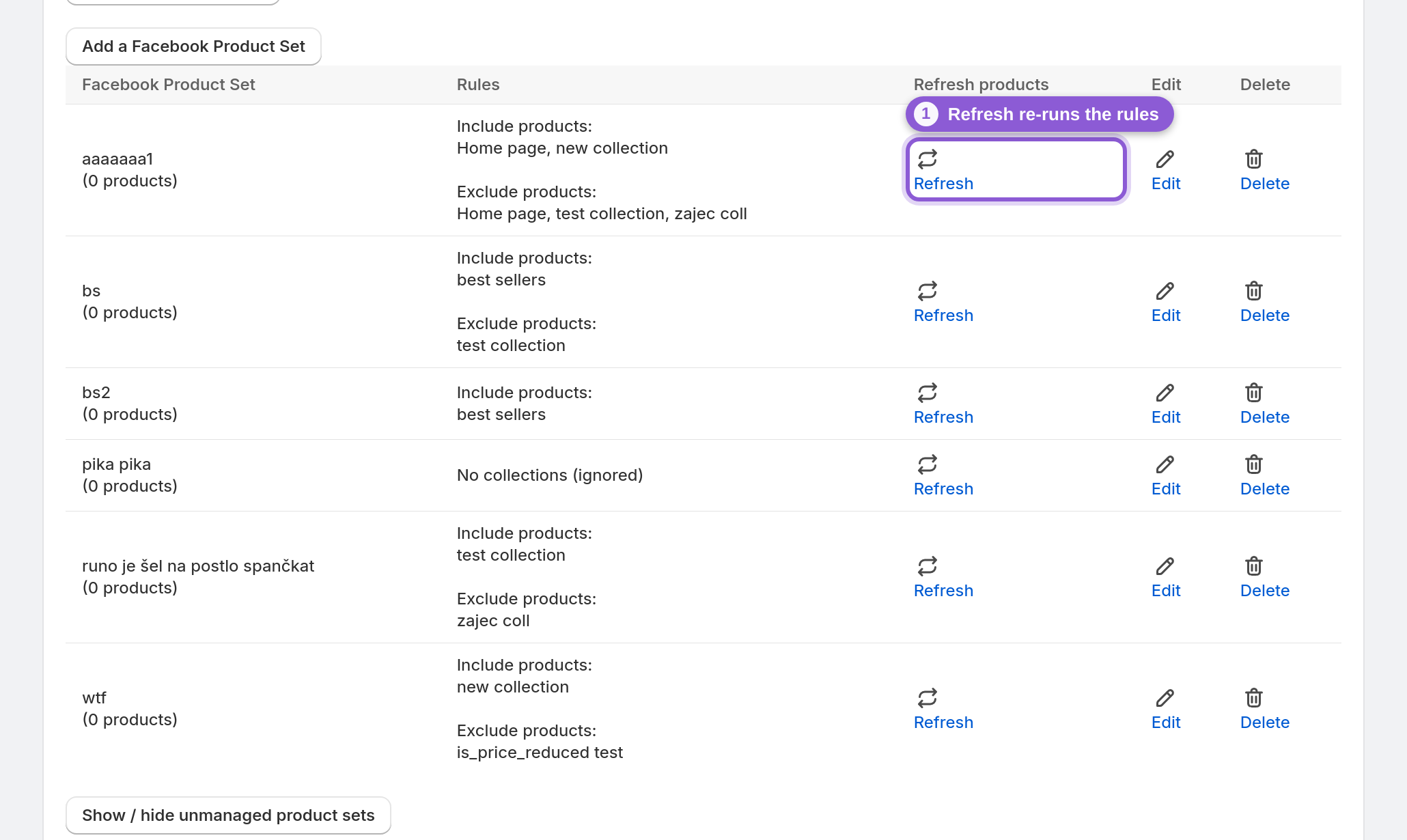
7 Edit or delete a set
Use Edit to reopen a set's rules any time — add or remove included and excluded collections, rename the set, then save. Delete removes the rules the app manages for that set. Deleting here stops the app from refreshing it; manage the underlying Facebook set itself in Commerce Manager if you also want it gone there.

Frequently asked questions
What is a Facebook Product Set?
A Product Set is a named subset of your Facebook catalog — a filtered group of products that ad campaigns and your shop can target. Instead of advertising every product, you point a dynamic ad at a set like 'bestsellers' or 'summer' and Facebook only shows those items.
How do Product Sets work with dynamic ads?
Facebook dynamic ads pull their products from a catalog, but you scope each ad set to a specific Product Set. So a campaign can advertise only your clearance items while another promotes new arrivals — all from the same catalog. Keeping the set's filter accurate in Commerce Manager keeps your ads showing the right products.
How do I segment my Facebook catalog?
Create a Product Set, then pick the Shopify collections to include in it and, optionally, collections to exclude from it. Add a separate set for each segment you want to advertise — each set stays current because it filters on the collection-ID internal labels in your automatically updated feed.
Can a product be in more than one Product Set?
Yes. Sets are independent, so a product that sits in several collections can land in several sets. Use the exclude row when a set must not contain a particular collection — exclusion always wins over inclusion.
What does Refresh products do?
It re-runs the set's rules against your current catalog and re-assigns the matching products. Run it after you change collections or edit rules. It processes in the background, so wait a moment and reload the page to see the new product count.
What happens when I exclude a collection?
Products in an excluded collection are kept out of the set even if they also match an include rule. Use it to hold back clearance, sample or wholesale collections from a campaign built on a broader collection.
What are unmanaged product sets?
Those are Product Sets the app didn't create — typically made by hand in Facebook Business Manager or by another app or integration. They show up under Show / hide unmanaged product sets for reference, but the app's rules and refresh don't manage them.
Do I create the Product Set in the app or in Facebook Commerce Manager?
Create it in Commerce Manager. Awesome Feeds exports each product's Shopify collection IDs as internal labels, so you filter on the collection ID there to build the set. You can still open the set in Commerce Manager (via the link in the table) to confirm it's targeted by your dynamic ads.
Why is my Product Set empty after I add rules?
Check that the set's filter in Commerce Manager uses the right collection ID internal label, and that your feed has rebuilt and been re-fetched by Meta since you changed the collection. Also check that your rules actually match products — an included collection that is empty, or an exclude row that cancels out everything you included, leaves the set with nothing. Adjust the collections and refresh again.