Add a Product Feed to Google Merchant Center from Shopify (Step by Step)
To add a product feed to Google Merchant Center from Shopify, you give Google a feed URL and let it fetch your products on a schedule. Awesome Feeds (formerly Awesome Facebook Product Feed) turns your Shopify catalog into exactly that: a Google-format XML feed, also available gzipped, that is updated automatically as your products, prices and stock change. This guide walks through building a feed for Google, setting the currency or Shopify Markets country for each country you sell in, filling in Google product categories, adding the URL in Merchant Center, and what to expect for condition and local inventory.
Don't have Awesome Feeds yet? Install it from the Shopify App Store →
1 Understand how the feed reaches Google
Awesome Feeds doesn't push products to Google through an API, and Merchant Center isn't a "connected" account. The app builds a feed URL; you add that URL to Merchant Center as a scheduled data source, and Google fetches it on its own schedule.
On the app side, feeds rebuild automatically after product, price, inventory or collection changes, and a background sweep refreshes every active feed. The gap between rebuilds depends on feed size: about 16-24 minutes at up to 1,000 products, about 80-120 minutes at 5,000, and about 3 hours if nothing changed. Google then picks up the latest version the next time it fetches.
2 Create a feed for Google
Click Add a product feed on the dashboard to create a new feed, then set it up in the Basic or Advanced editor. You can switch between editors at any time without losing settings. Give it a clear name, like "Google – United States", because you can have unlimited feeds on every plan and each one is configured on its own.
Choose what goes in: all products or only selected collections, excluding products by tag, and Filter variants rules (for example a minimum price). Pick a variant export mode: all variants including sold out (the default, exported as out of stock), all available variants excluding sold out, or one variant per product.
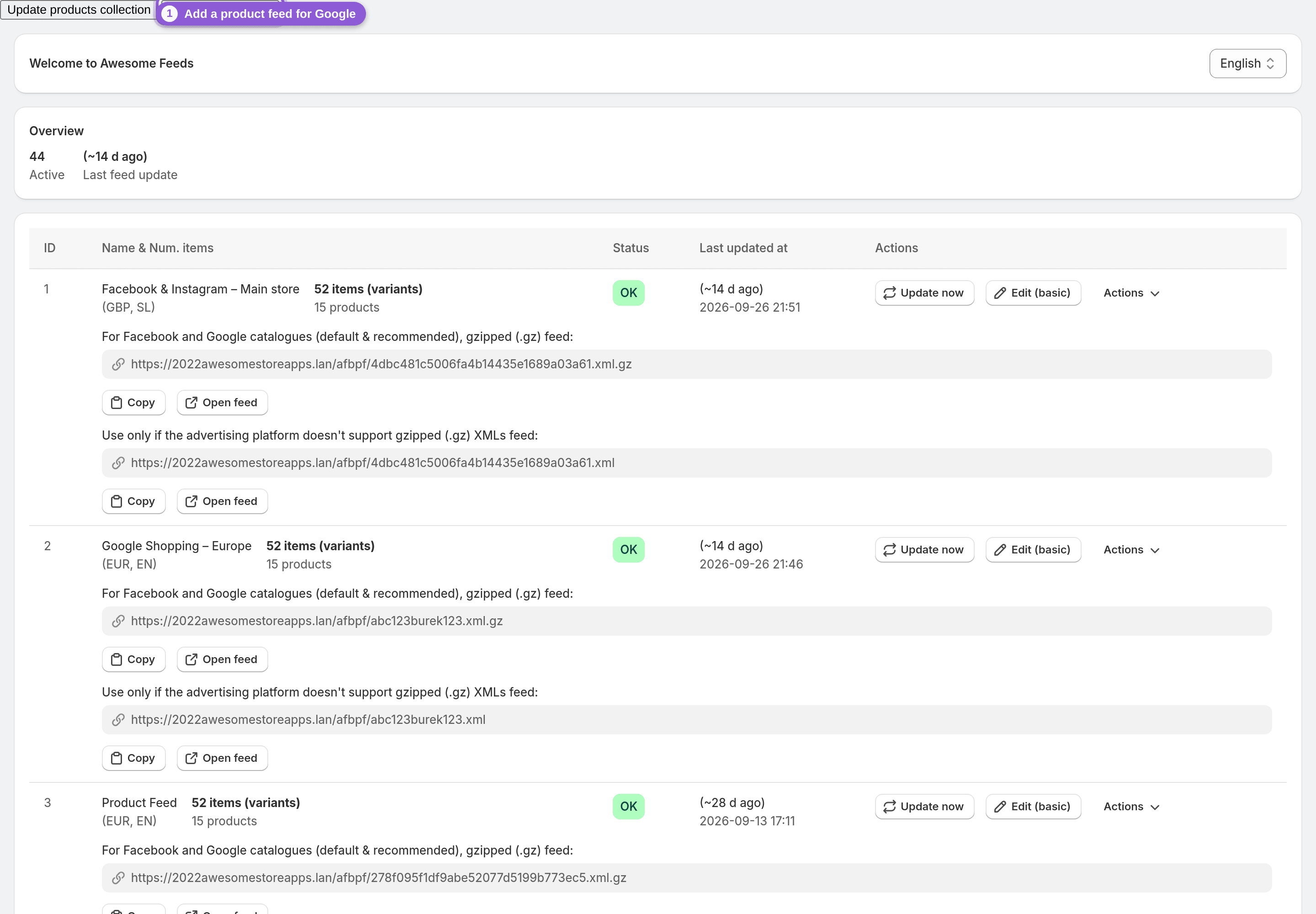
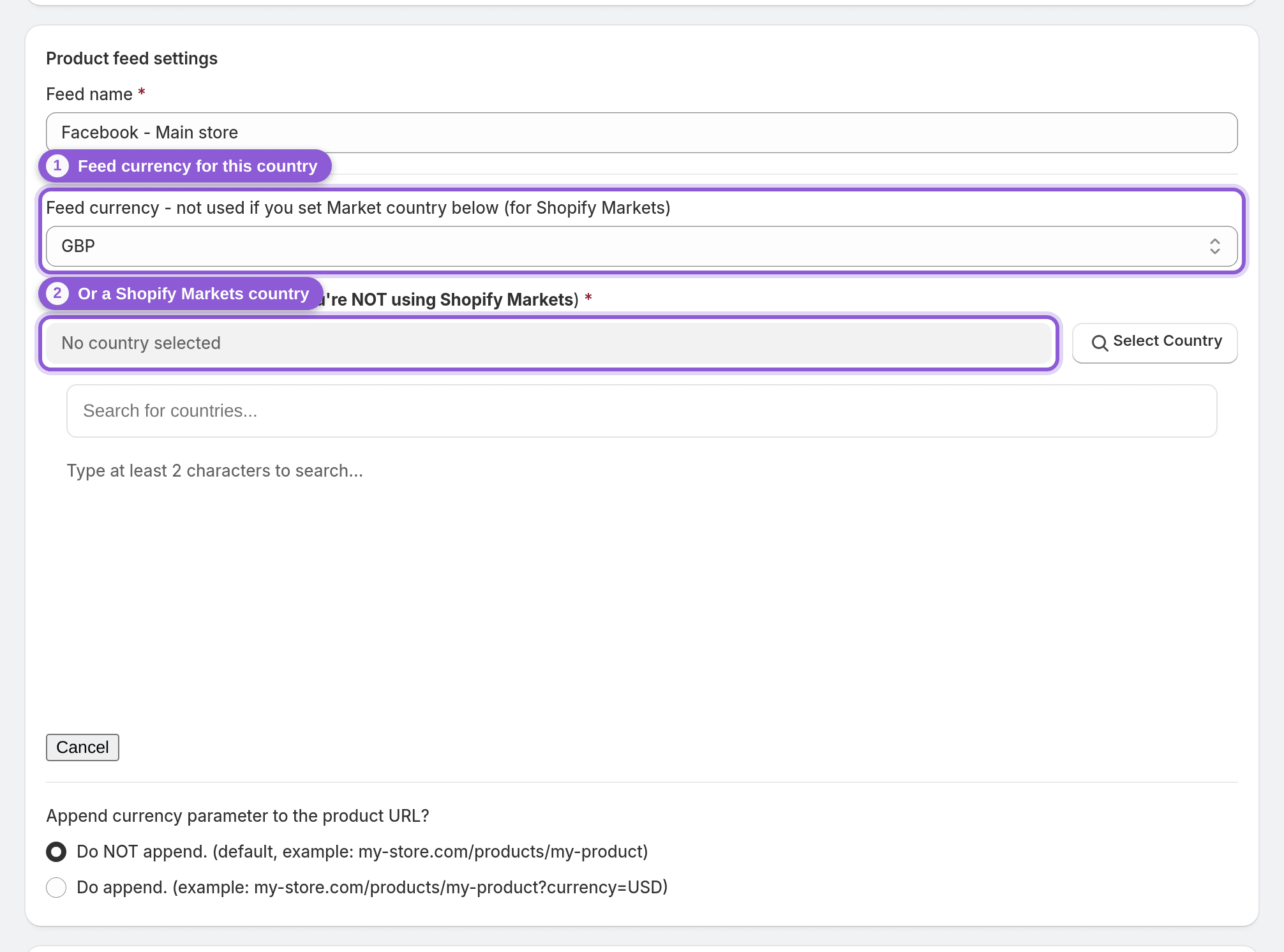
3 Set the currency or Shopify Markets country
Google expects the prices in a feed to match the country you target, so build one feed per country. In the feed's settings, set either a Feed currency or a Shopify Markets country in Market country (if you set a Market country, the feed currency isn't used). With a Markets country, prices come straight from that market. Nothing is converted, so the currency must be enabled in your store.
Selling in another language too? A feed can export translated titles and descriptions from your existing Shopify translations. The app doesn't translate text itself. See Multi-language and multi-currency feeds for every option.
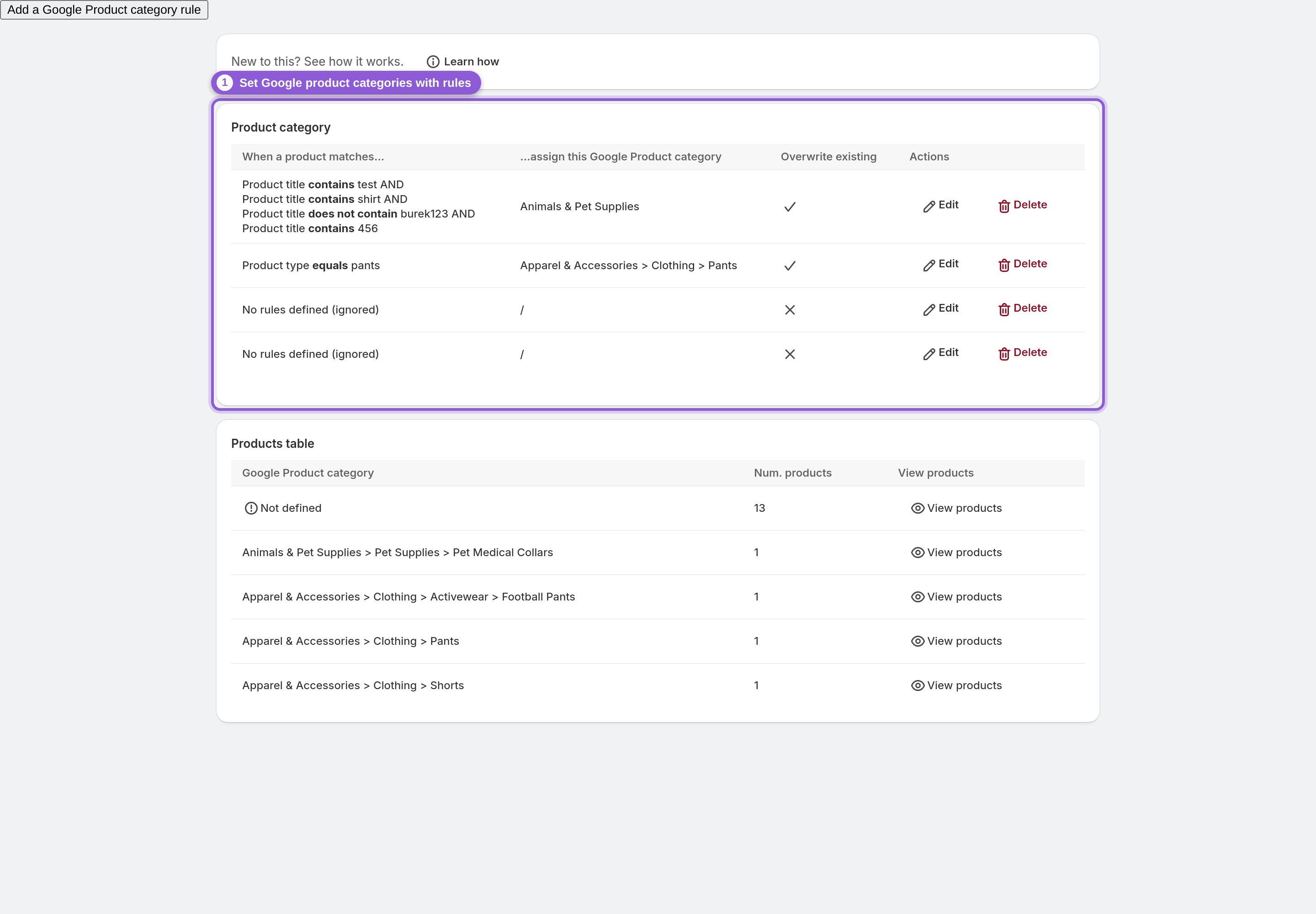
4 Fill in Google product categories and attributes
Awesome Feeds does not detect Google product categories automatically. Set them yourself with any of these:
• Google Shopping rules: set Google product category, gender, age group and color across the catalog with AND/OR conditions, and choose whether to overwrite existing values
• Metafields: take Google fields from product metafields in the app's Settings
• Attribute mapping: map product attributes to Google fields
While you're there, check the GTIN, MPN and brand sources (brand from vendor or product type). Rules are covered step by step in Google Shopping rules.
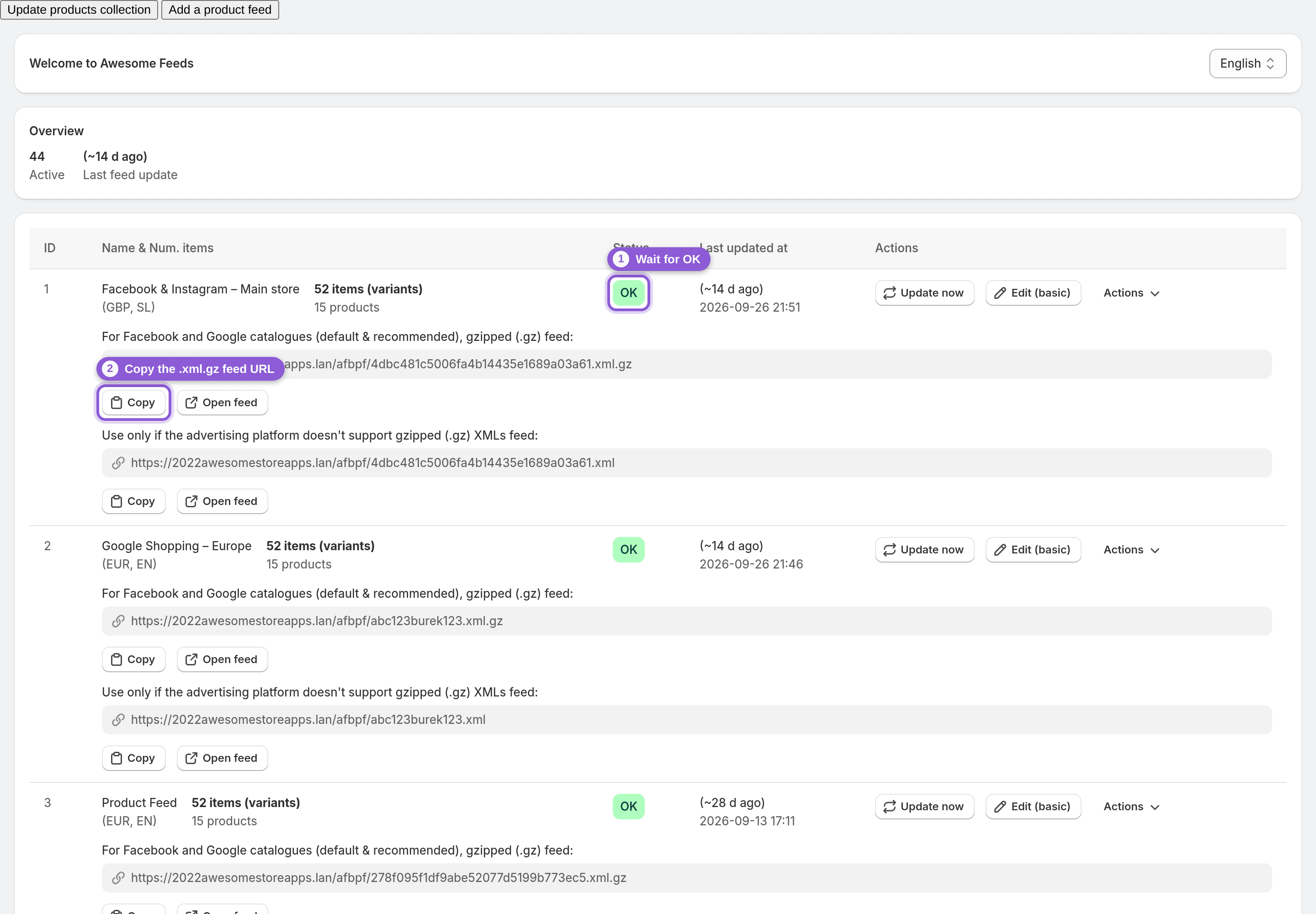
5 Save and copy the feed URL
Save the feed. Its status badge on the dashboard shows Updating, please wait and then OK. Copy its feed URL from the dashboard with the Copy button. Each feed has a plain XML URL (.xml) and a gzipped one (.xml.gz); both contain the same Google-format data. Use the gzipped .xml.gz URL, which the dashboard marks as the default and recommended feed for Facebook and Google. A plain .xml URL only appears if it's enabled for your feed, and it's meant only for platforms that can't read gzipped files.
6 Add the feed URL in Google Merchant Center
In Google Merchant Center, click Settings (the gear icon) → Data sources, and under the Product sources tab select Add product source. Choose Add products from a file, pick the option to enter a link to your file, and paste the feed URL from step 5 (the .xml.gz URL is fine). Choose the country and language that match this feed, then use Edit schedule to set how often and when Google fetches it (every 24 hours by default).
Save, then let Google run its first fetch. Repeat this step for each country feed you built, adding each one as its own data source.
7 Know what the feed doesn't include
A few things to expect before you check Merchant Center diagnostics:
• Condition is always exported as new. Condition rules have no effect, so the feed can't mark products as used or refurbished.
• No local inventory feed: there are no store codes or pickup fields.
• No CSV/TSV: the only output is Google-format XML.
• Stock comes from all locations combined (the default) or one chosen location, not a subset.
If a feed has more products than your plan allows (2,000 on Pro, 5,000 on Business, unlimited on Enterprise, counted per feed), it stops building and shows Needs attention until you upgrade.
Frequently asked questions
Which Awesome Feeds URL do I use for Google Merchant Center?
The feed URL from the Awesome Feeds dashboard. Each feed has a plain XML (.xml) and a gzipped (.xml.gz) version with the same Google-format data. Add it in Merchant Center as a scheduled data source so Google fetches it regularly. Use one feed, and one URL, per country you target.
Does Awesome Feeds connect to Google Merchant Center automatically?
No. There's no API push and nothing to log in to. You paste the feed URL into Merchant Center once, and Google re-fetches it on the schedule you set. Awesome Feeds keeps the file behind that URL updated automatically as your store changes.
How often does Google Merchant Center get my product changes?
It depends on two schedules. The app rebuilds a feed automatically after product, price, inventory or collection changes, with a gap of about 16-24 minutes for feeds up to 1,000 products and longer for bigger feeds. Google then reads the latest feed whenever it fetches, based on the schedule you chose in Merchant Center. Need a rebuild right away? Use Update now on the feed.
Does the app add Google product categories automatically?
No, it doesn't detect categories. Set them with Google Shopping rules (with AND/OR conditions), from metafields, or by mapping product attributes to Google fields. Rules can also set gender, age group and color across your catalog.
Does the feed include product videos and additional images for Google?
Yes. Videos uploaded to your Shopify products are sent as video_link, and extra product images as additional_image_link (Google uses up to 10). Google only shows videos that are 6 to 240 seconds long and at least 720p. For tall portrait videos the feed sends your original upload, because the versions Shopify makes of them are narrower than 720 pixels.
Can I list used or refurbished products on Google with Awesome Feeds?
Not currently. Every product is exported with condition new, and condition rules have no effect on the feed.
Can I create a feed for each country in Google Merchant Center?
Yes. Feeds are unlimited on every plan, so build one per country and set its feed currency or Shopify Markets country. With Markets, the feed uses that market's prices; nothing is converted, so only currencies your store has enabled are available. Add each feed in Merchant Center as its own data source for that country.