Prices in Your Product Feed: Sale Prices, Tax, Rounding & Currency
Prices are the part of a product feed that has to be exactly right — a wrong or missing price gets a product disapproved in Facebook Commerce Manager or flagged as a price mismatch in Google Merchant Center. This app builds each item's price from four things you control in the Advanced editor: whether Shopify's Compare-at price becomes a strikethrough sale price, whether tax is baked into the price, how prices are rounded and formatted, and whether the product link carries a ?currency= tag. This guide walks through all four, and explains exactly what ends up in the price and sale_price fields of your feed.
Don't have Awesome Feeds yet? Install it from the Shopify App Store →
1 Open the Advanced editor
Every price option lives in the Advanced editor, not the Basic one. From your dashboard, open the feed's Actions menu and choose Edit (advanced). The Basic editor deliberately hides these settings so it can stay a short form — switching to Advanced never loses your existing settings, so it's safe to open any time you need to fix a price.
![Open the Advanced editor — s-button[commandFor="feed-menu-1"] highlighted](/docs-assets/img/sale-prices-taxes-and-rounding/00-dashboard-edit-advanced.png?6c7ed517)
2 Turn Compare-at into a strikethrough sale price
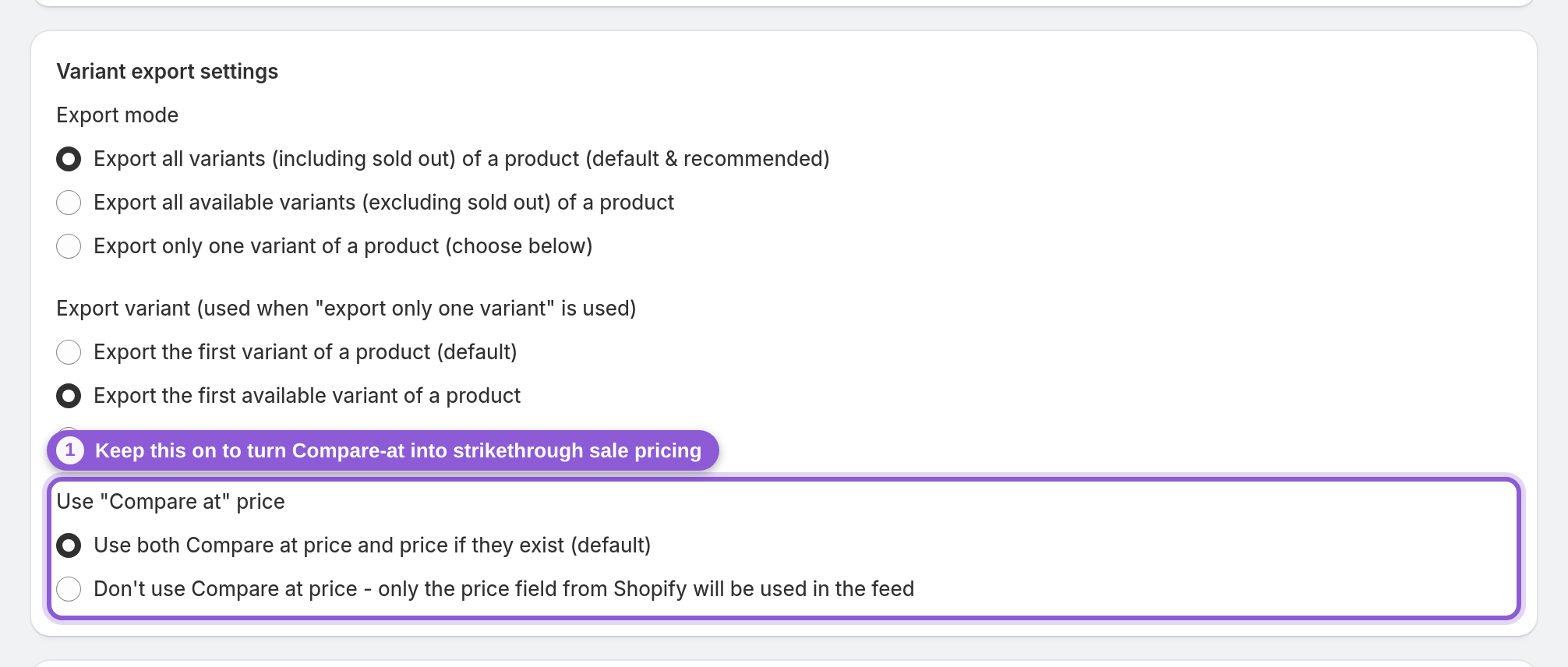
In Variant export settings, the Use "Compare at" price option decides how discounts show up. Leave it on the default — "Use both Compare at price and price if they exist (default)" — and any variant that has a Shopify Compare-at price higher than its current price is exported as on sale: the Compare-at price becomes the regular price and the actual selling price becomes the sale_price. That's what produces the crossed-out "was/now" strikethrough pricing in Facebook and Google ads. Pick "Don't use Compare at price" and only Shopify's price field is used — no sale_price is ever written, even on discounted items. If a variant has no Compare-at price (or one that isn't higher than the price), it's simply exported at its normal price with no sale — so you can safely leave this on for your whole catalog.
3 Add tax to your prices (or defer to your global Settings)
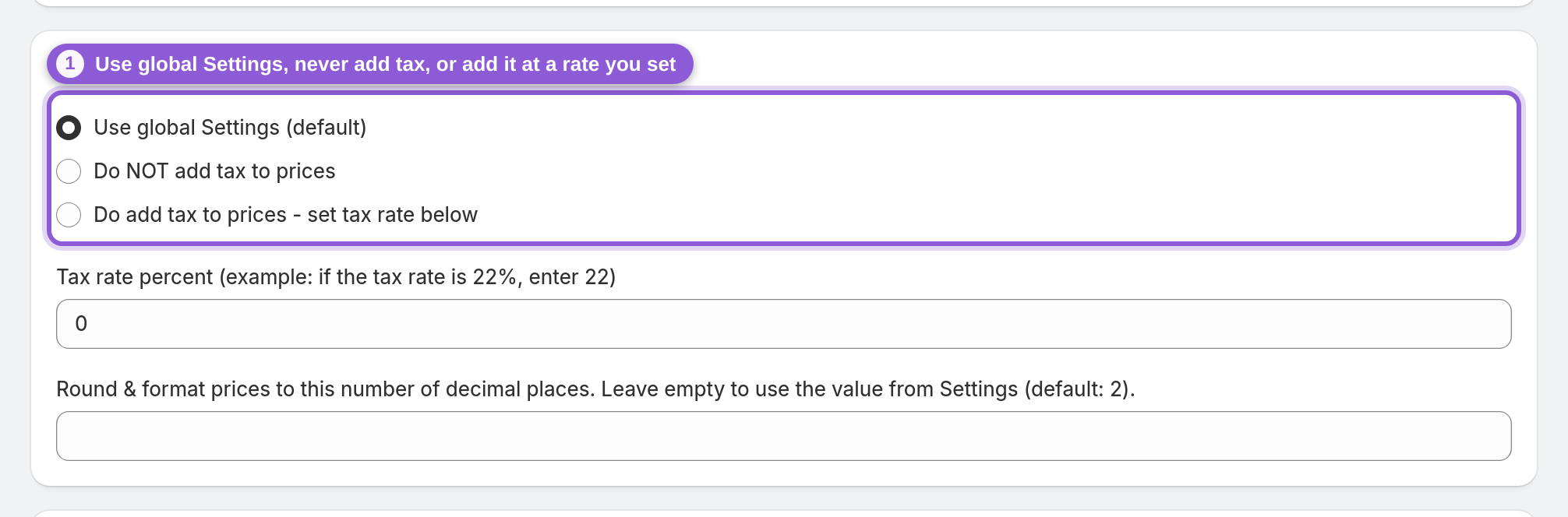
The Add tax to all prices section is where tax-inclusive pricing is handled — its heading literally reads "Add tax to all prices - override global Settings" because this is a feed-level override of the store-wide tax default. There are three choices:
• "Use global Settings (default)" — this feed follows whatever you set app-wide under Settings (see the related Settings guide, "Set tax and price rounding"). Most stores leave every feed on this so tax is configured once.
• "Do NOT add tax to prices" — force this feed to export raw Shopify prices, ignoring the global tax setting. Use this for a catalog that must be tax-exclusive (e.g. a US feed) even though your global default adds tax.
• "Do add tax to prices - set tax rate below" — force tax on for this feed at a rate you enter in the next field, regardless of the global setting.
Because it's an override, the feed-level choice always wins over the app-wide Settings default. Set tax in exactly one place per feed, and leave it off if your Shopify prices already include tax, so you won't double-count it.
4 Set the tax rate
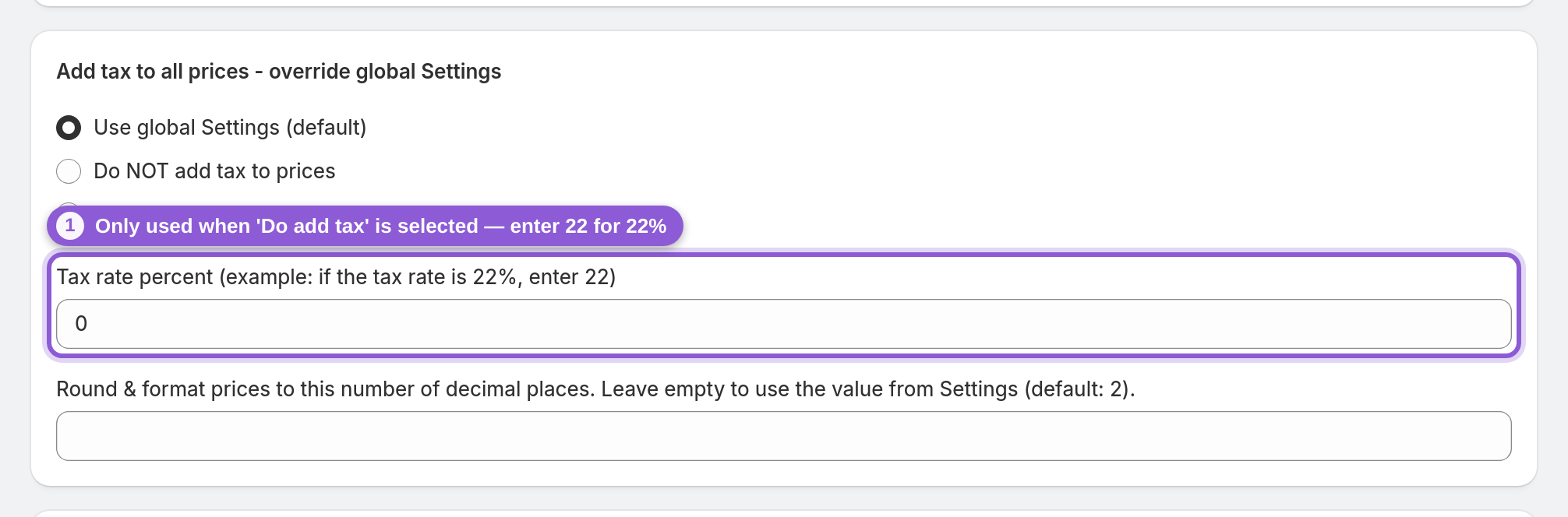
The Tax rate percent (example: if the tax rate is 22%, enter 22) field only matters when you chose "Do add tax to prices" above. Enter the rate as a whole number — 22 for 22%, not 0.22 — and every price and sale price in the feed is multiplied by 1 + rate/100 before it's written. Leave it at 0 and prices go out exactly as they are in Shopify; on "Use global Settings" the feed follows your app-wide tax setting instead. Getting this field right is the usual fix for a Google Merchant Center price mismatch, where Google compares your feed price to the price on your landing page: if your storefront shows tax-inclusive prices but your feed doesn't (or vice-versa), they won't match.
5 Round and format prices
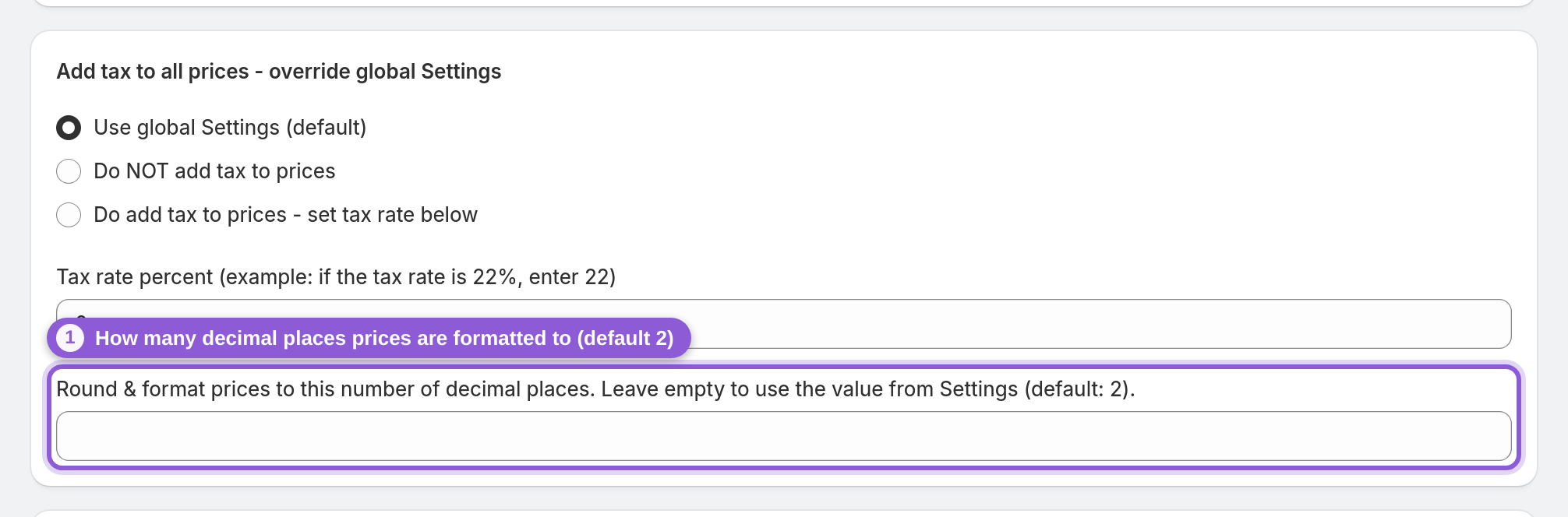
Round & format prices to this number of decimal places controls how many decimals this feed's prices are formatted to, and it works like the tax setting above: leave it empty and the feed uses your store-wide value from Settings (see the Settings guide, "Set tax and price rounding"); type a number to override it for this feed alone. Two decimals (19.99 USD) is what Facebook and Google expect, and it's also what keeps a tax-multiplied price from going out with a long trailing decimal like 24.3878 — so most stores leave this empty and configure rounding once in Settings. Override per feed only when one channel specifically needs whole numbers (20 USD) or extra precision.
6 Append the currency to product links (optional)
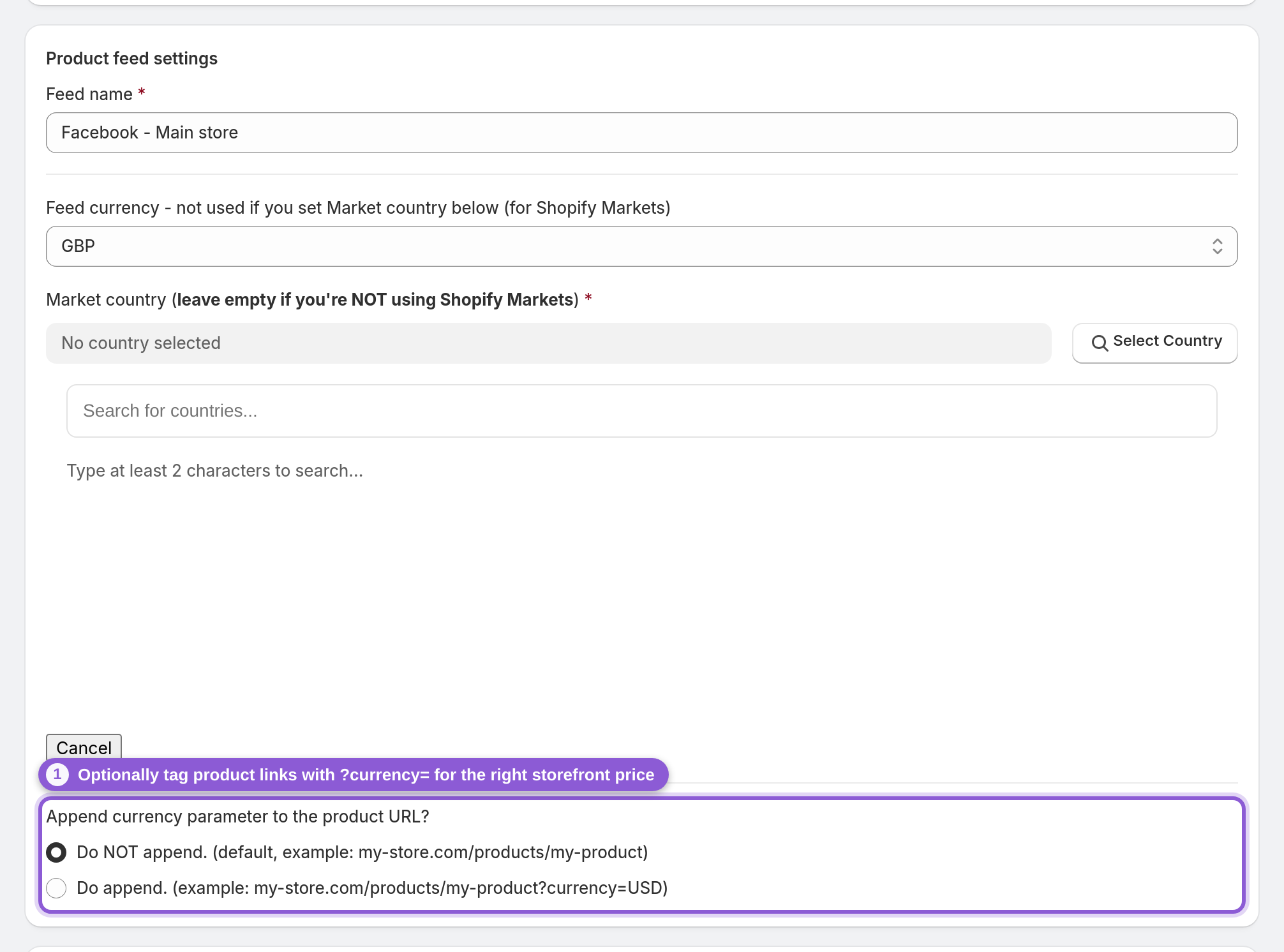
Back in Product feed settings, Append currency parameter to the product URL? decides whether each product link ends in a ?currency= tag. The default is "Do NOT append. (default, example: my-store.com/products/my-product)"; switch it to "Do append. (example: my-store.com/products/my-product?currency=USD)" to force the storefront to open in this feed's currency — which helps the landing-page price match the feed price. This is really a multi-currency concern, so it's covered in depth in the Multi-Language & Currency Feeds guide; here it's just one switch to know about.
7 Save and check the price in your feed
Hit Save and the feed rebuilds with your new pricing (click Update now to queue an immediate rebuild). Open the feed URL and look at a discounted product: with Compare-at on, you'll see both a price (the higher Compare-at value) and a sale_price (the lower actual value); a full-price product shows only a price. If tax is on, both numbers are already multiplied by your rate, and everything is formatted to your decimal places. That's the whole price pipeline — Compare-at, tax, rounding — visible in the feed exactly as Facebook and Google will read it.
Frequently asked questions
Why isn't my sale price showing as a strikethrough in Facebook or Google?
A sale price is only written when a variant's Shopify Compare-at price is higher than its current price and the Use "Compare at" price option is on (the default). If Compare-at is empty, equal to, or lower than the price, no sale_price is exported and the item shows at full price. Set a higher Compare-at price in Shopify and keep the option on its default.
How does the app decide the price vs. the sale price?
When a variant is on sale, the Compare-at price becomes the regular price and the actual selling price becomes the sale_price — so ads show the original price crossed out and the discounted price beside it. Products that aren't discounted export a single price with no sale_price.
My feed price doesn't match my website — how do I fix the price mismatch?
A Google Merchant Center price mismatch almost always comes from tax: Google compares your feed price to your landing-page price. Line them up by setting Add tax to all prices to match how your storefront displays prices — add tax (with the right rate) if your store shows tax-inclusive prices, or leave it off if it doesn't. The append-currency option helps too, by opening the landing page in the feed's currency.
How do I add tax to the prices in my product feed?
In the Advanced editor's Add tax to all prices section choose "Do add tax to prices - set tax rate below", then enter the rate as a whole number in Tax rate percent (22 for 22%). Every price and sale price is multiplied by that rate before export. To configure tax once for every feed instead, leave feeds on "Use global Settings" and set it in the app Settings.
What's the difference between the feed's tax setting and the global Settings?
The global Settings tax option is the store-wide default; each feed's Add tax to all prices is an override. A feed set to "Use global Settings" follows the default; set it to "Do add tax" or "Do NOT add tax" and that feed ignores the default and does its own thing. The feed-level choice always wins.
Will I accidentally add tax twice?
Not if you set it in one place. Tax is applied once, using either the global Settings rate (when the feed is on "Use global Settings") or the feed's own rate (when the feed overrides). It's never both. Double-counting only happens if your Shopify prices already include tax and you also switch tax on here — in that case leave the feed's tax off.
Why does my feed price have too many decimal places?
Prices are formatted with Round & format prices to this number of decimal places — the store-wide default lives in the app Settings (2 decimals, 19.99, unless you changed it), and each feed can override it with its own value. If a tax multiplier produced a long decimal, the rounding is what trims it back. Two decimals is what Facebook and Google expect, so only override when a channel asks for whole numbers.
Does the currency parameter change the price in my feed?
No — the price numbers come from Shopify (and your tax/rounding settings). The Append currency parameter option only adds a ?currency= tag to the product link so the storefront opens in the feed's currency. It's mainly for multi-currency stores; see the Multi-Language & Currency Feeds guide.
Where do I set tax and rounding for all my feeds at once?
In the app Settings page under "Set tax and price rounding". Those are the store-wide defaults; any feed left on "Use global Settings" inherits them, so you configure tax and rounding once instead of per feed.