Custom Labels for Facebook & Google Ads (Shopify Product Feed)
Custom labels are the field that lets you slice your catalog into groups your ad team can actually bid and report on — bestsellers, high-margin lines, seasonal ranges, clearance. The advanced feed editor gives you five of them (custom_label_0 through custom_label_4), and each one can pull a different value from your products. This guide is a deep dive: what custom labels are on the Facebook and Google side, every source option in the dropdown, how to drive a label from a metafield, how to keep featured products in every label, and how internal labels feed Facebook product sets. The Advanced editor guide covers this in one section — here's the whole picture.
Don't have Awesome Feeds yet? Install it from the Shopify App Store →
1 Open the Advanced editor
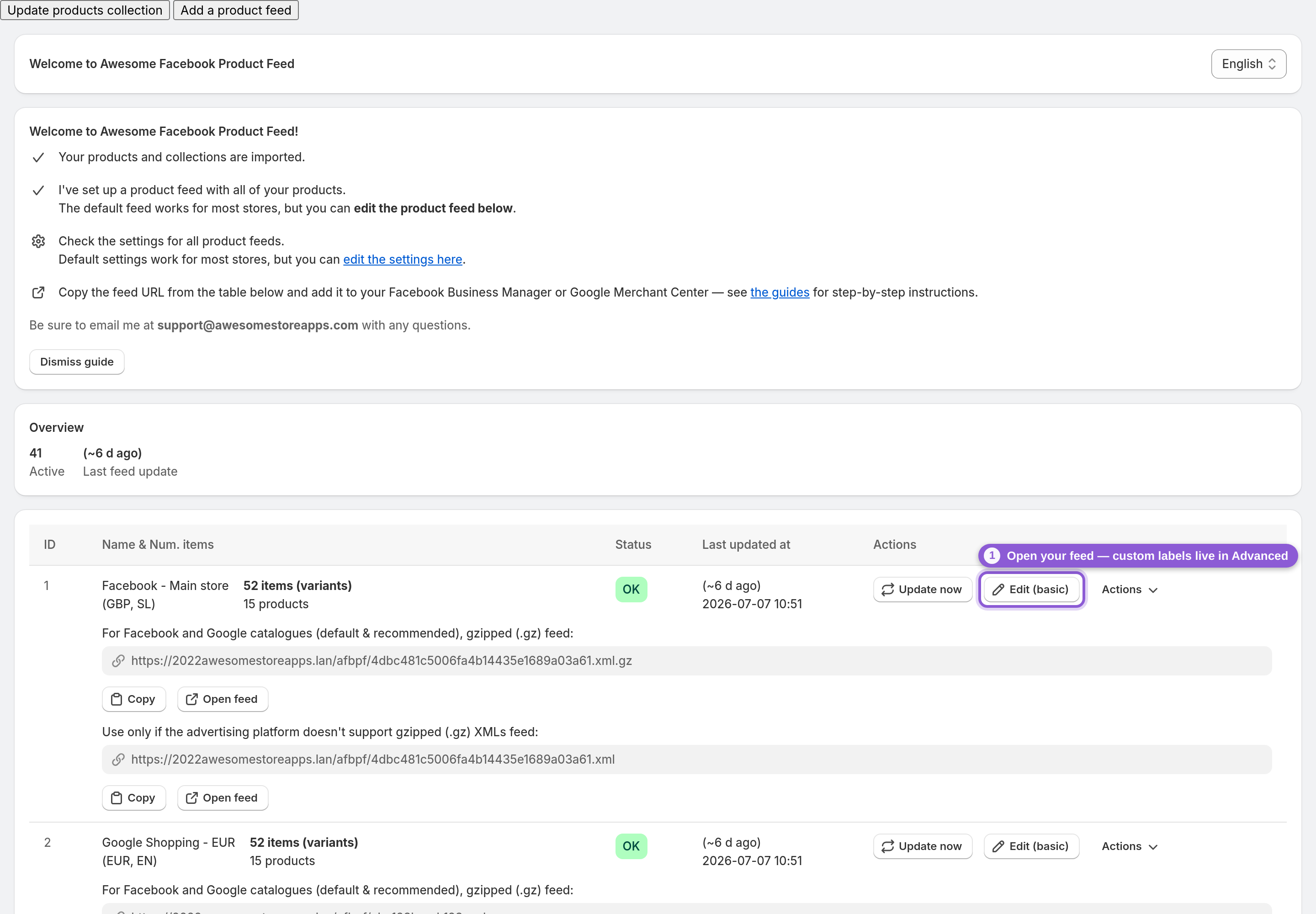
Custom labels only live in the Advanced editor, so start there. On your dashboard, click Edit (basic) on the feed you want, then use Switch to advanced at the top — or pick Edit (advanced) from the feed's Actions menu. Both editors change the same feed, so nothing is lost. Once you're in, scroll down to the Custom labels section.
2 Meet the five custom label slots
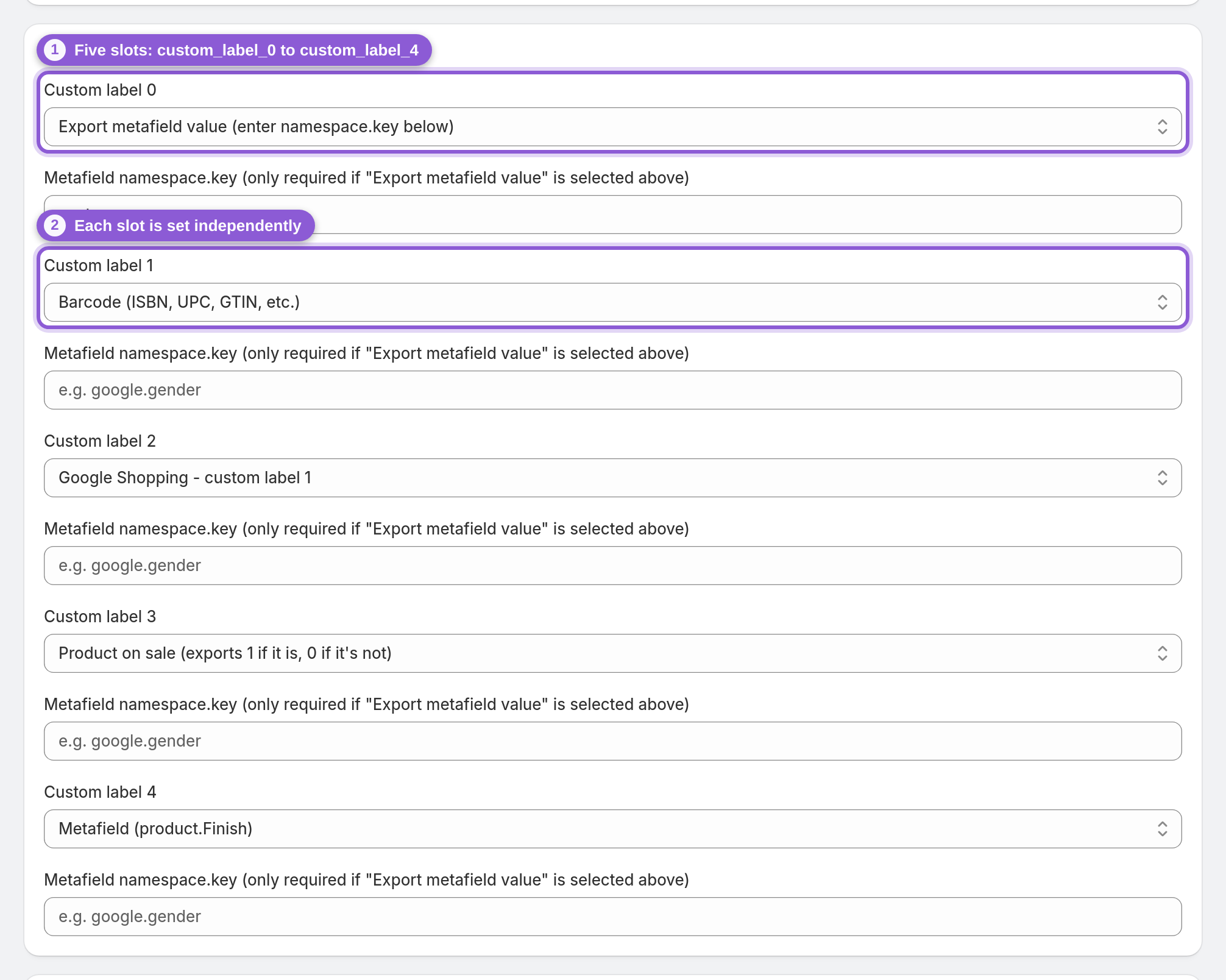
You get five slots — Custom label 0 to Custom label 4 — and each is set completely independently. In the feed they're exported as custom_label_0 through custom_label_4, the same fields Facebook and Google Ads read for segmentation. A common setup is one slot for margin tier, one for a bestseller flag, one for season, and one for clearance, so a single feed can drive several campaign breakdowns at once.
3 Choose what each label reports
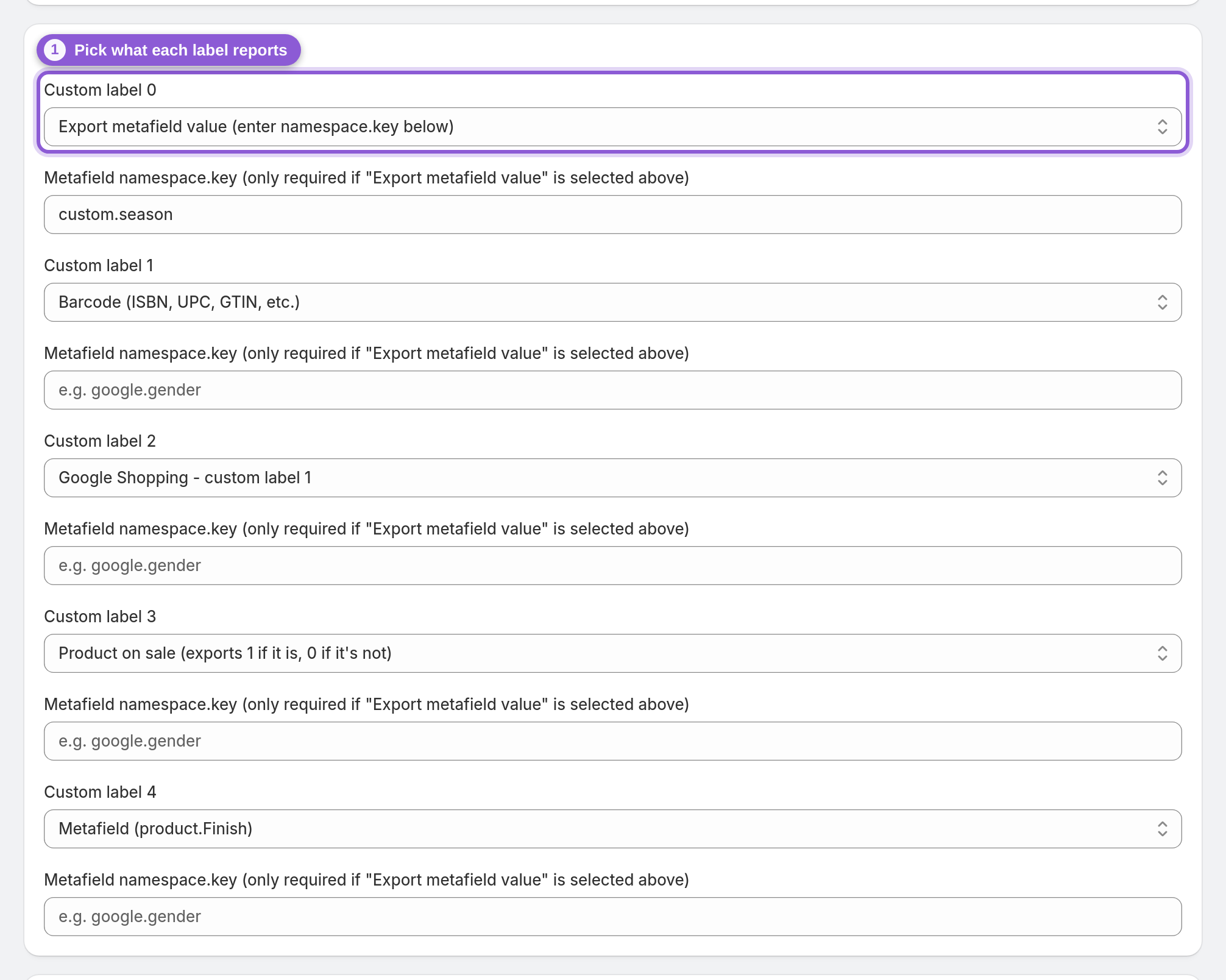
Each slot is a dropdown of ready-made sources. Product tags (comma separated) and Collection ids (comma separated) are the workhorses for grouping. There are pricing signals — Price divided by 4 (handy for buy-now-pay-later messaging), Price with VAT (19%), Price with VAT (22%) and Price without currency — plus status flags like Product on sale (exports 1 if it is, 0 if it's not) and Product on clearance (exports 1 if it is, 0 if it's not). You'll also find identifiers (SKU, Barcode (ISBN, UPC, GTIN, etc.), Shopify product ID, Shopify variant ID), inventory signals (Inventory quantity, Number of variants with stock) and even Product on sale + product type for combined bucketing. Set the ones you need and leave the rest on Empty.
4 Drive a label straight from a metafield
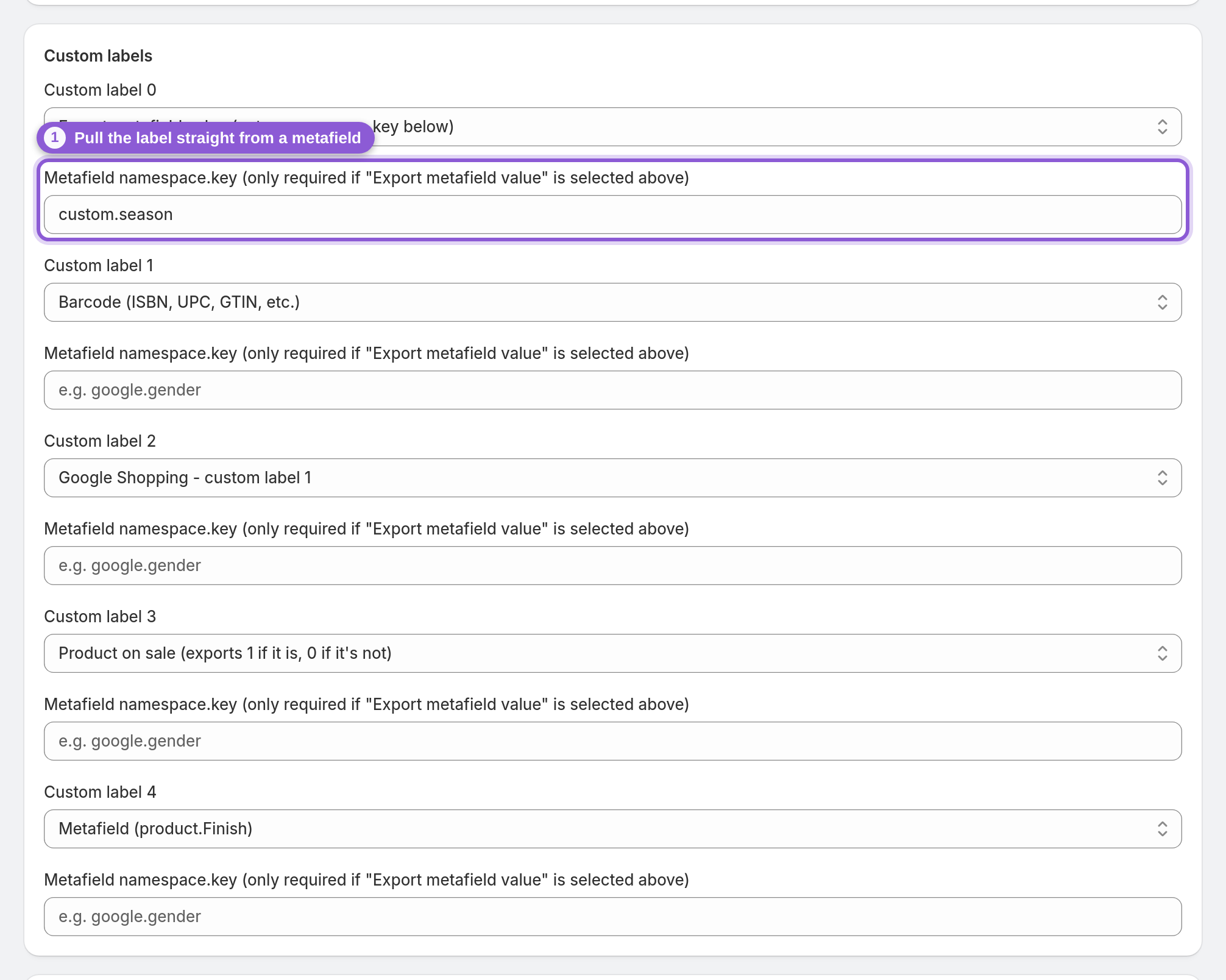
To pull a value that's unique per product, set the slot to Export metafield value (enter namespace.key below) and type the reference into the Metafield namespace.key field right underneath it (placeholder e.g. google.gender). This exports that metafield's value straight into the custom label, so you can segment on anything you already store on your products — supplier, launch season, promo tier. There are also preset metafield sources in the dropdown (Style, Color, Material, Finish and more) if your data lives under those keys.
5 Keep featured collections in every label
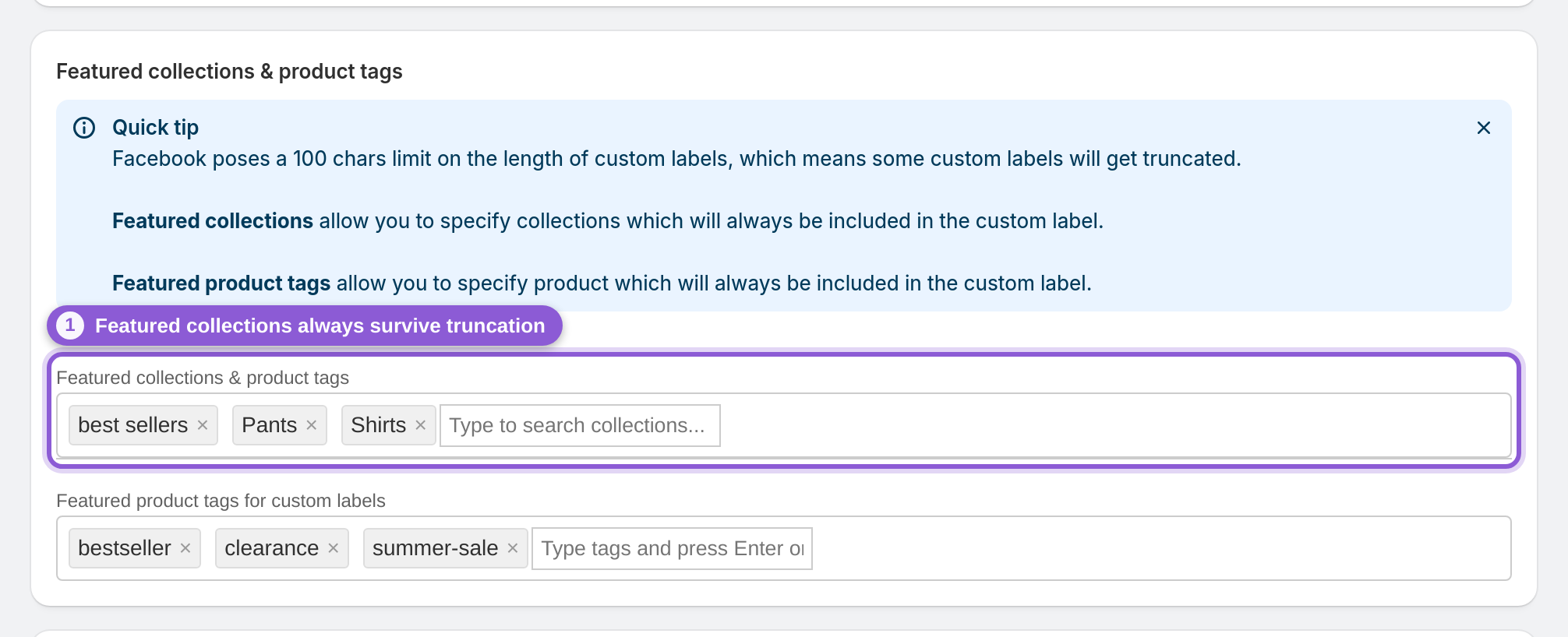
Facebook and Google cap a custom label at 100 characters, so a tag- or collection-driven label with lots of values gets truncated — and the values you care about might be the ones cut off. Featured collections solves this: the collections you pick here are always included in the custom label, pushed to the front so they survive truncation. Start typing to search and add the collections that matter most to your bidding. If the goal is a Facebook product set per collection, skip this workaround and use internal labels (step 7) — they have no 100-character limit. Featured collections stay useful for Google feeds and for feeds too large for internal labels.
6 Push featured product tags to the front
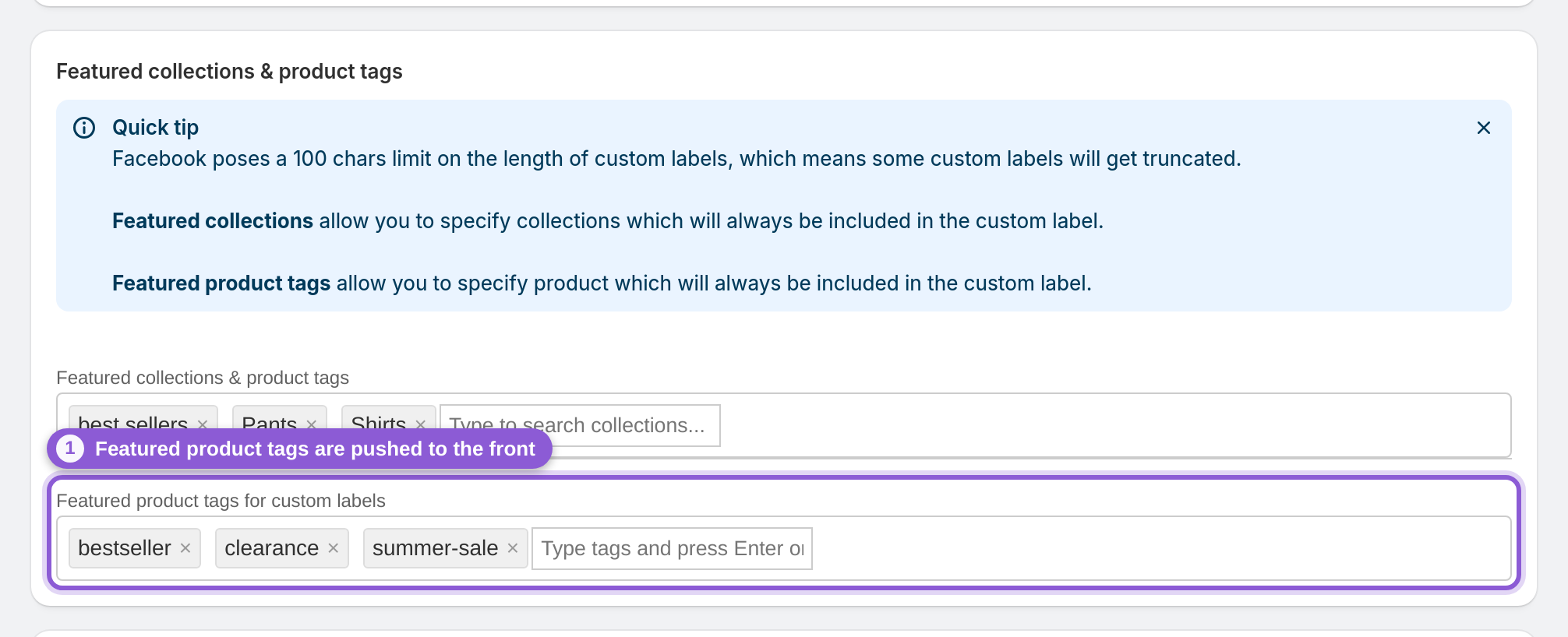
Featured product tags works the same way for tag-driven labels: any tag you list here is always included and moved to the front of the custom label, so a "bestseller" or "clearance" tag never falls off the end when a product carries dozens of tags. This is the reliable way to make sure the segment your campaigns filter on is actually present in every product's label.
7 Export internal labels for Facebook product sets
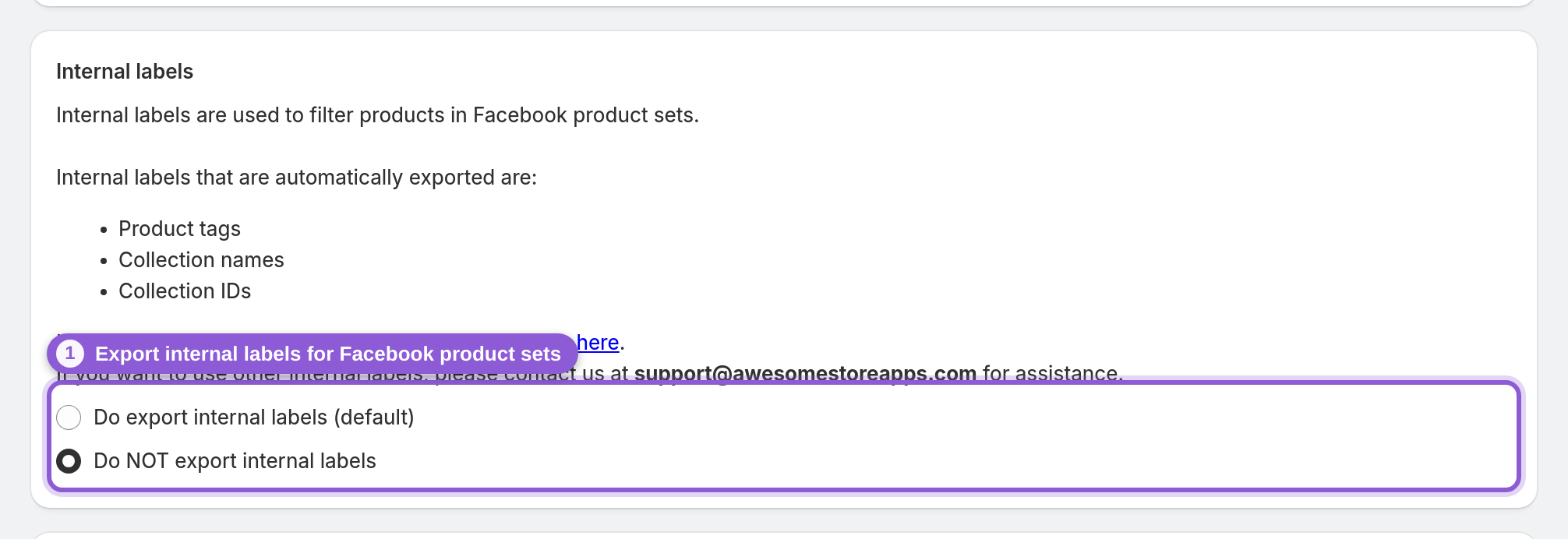
Internal labels are a separate, Facebook-specific field, and the recommended way to filter products into Facebook product sets. Leave this on Do export internal labels (default) and the feed exports one internal label for each of a product's Product tags, Collection names (both in lowercase) and Collection IDs. In Commerce Manager, create a set with the filter Internal label → is → your Shopify collection id and it holds exactly that collection — matched as a whole, with no 100-character cut-off, and without using up a custom label slot. The step-by-step is in Create Meta product sets from Shopify collections. Feeds above 1,000,000 variants are the exception: the app switches internal labels off for them automatically, so they rely on the collection ids custom label plus featured collections. Save the feed when you're done and it regenerates automatically.
Frequently asked questions
What are custom labels in a Facebook product feed?
Custom labels are five extra fields (custom_label_0 to custom_label_4) you can attach to every product in your feed. They don't change how a product looks in your catalog — they're grouping tags that Facebook and Google Ads use so you can bid and report on segments like bestsellers, margins, season or clearance.
How do I segment my Shopify products for Facebook ads?
For segments that follow a Shopify collection or product tag, use internal labels: the feed exports them by default, so in Commerce Manager you open your catalog's Sets tab and create a set with the filter Internal label → is → your collection id (or the tag in lowercase). For other segments — sale or clearance flags, price bands, metafield values — set one of the five custom label slots in the Advanced feed editor, save the feed, and once Facebook re-fetches it create a set with a custom label filter. Then point campaigns at those sets.
What custom labels can I use for Google Shopping?
The same five custom_label_0–4 fields flow into Google Shopping. In Google Ads you can subdivide the product groups of a Shopping or Performance Max campaign by any of the five labels, then bid and report on each segment — margin tier, price band, bestseller status. Google reads one value per label per product, up to 100 characters.
Can I set a custom label from a Shopify metafield?
Yes. Set the slot to 'Export metafield value (enter namespace.key below)' and enter the metafield reference (for example google.gender) in the Metafield namespace.key field beneath it. The metafield's value is exported straight into that custom label, per product.
How many custom labels can I use?
Five per feed — custom_label_0 through custom_label_4 — and each is configured independently. You can mix sources: a tag-based label in one slot, a metafield in another, a sale flag in a third.
Why is my custom label getting cut off?
Facebook and Google limit custom labels to 100 characters, so a label built from many tags or collections can be truncated. Add the collections you care about under Featured collections, and the tags under Featured product tags — those are always included and pushed to the front of the label so they survive the limit. For Facebook product sets you can avoid the limit altogether by filtering on internal labels instead.
What's the difference between custom labels and internal labels?
Custom labels (custom_label_0–4) are for segmenting campaigns in Facebook and Google Ads, hold one value of up to 100 characters each, and can be used as text in ad creative. Internal labels are a separate Facebook-only field made for filtering products into Facebook product sets: only you can see them, a product can carry thousands of them, they are matched as a whole, and the feed exports them automatically from your product tags, collection names and collection IDs. Google has no internal labels.
Do I need custom labels to run a product feed?
No. They're optional. If you're not segmenting campaigns yet, leave every slot on Empty — your feed still works. Add custom labels later when your ad account is ready to bid or report by group.
Does the feed export numbers I can bid on, like price or inventory?
Yes. Sources like Price divided by 4, Inventory quantity and Number of variants with stock produce numeric values. When a custom label value is numeric, the app also exports it as a custom_number field alongside the custom_label — Meta's catalog reads those as whole-number fields you can use for numeric filters when building product sets (Google Shopping uses only the custom_label values).
Will my custom labels update when products change?
Yes. Custom labels are recalculated every time the feed regenerates, so a product that goes on sale, sells out, or gains a tag has its labels refreshed automatically — no manual editing.